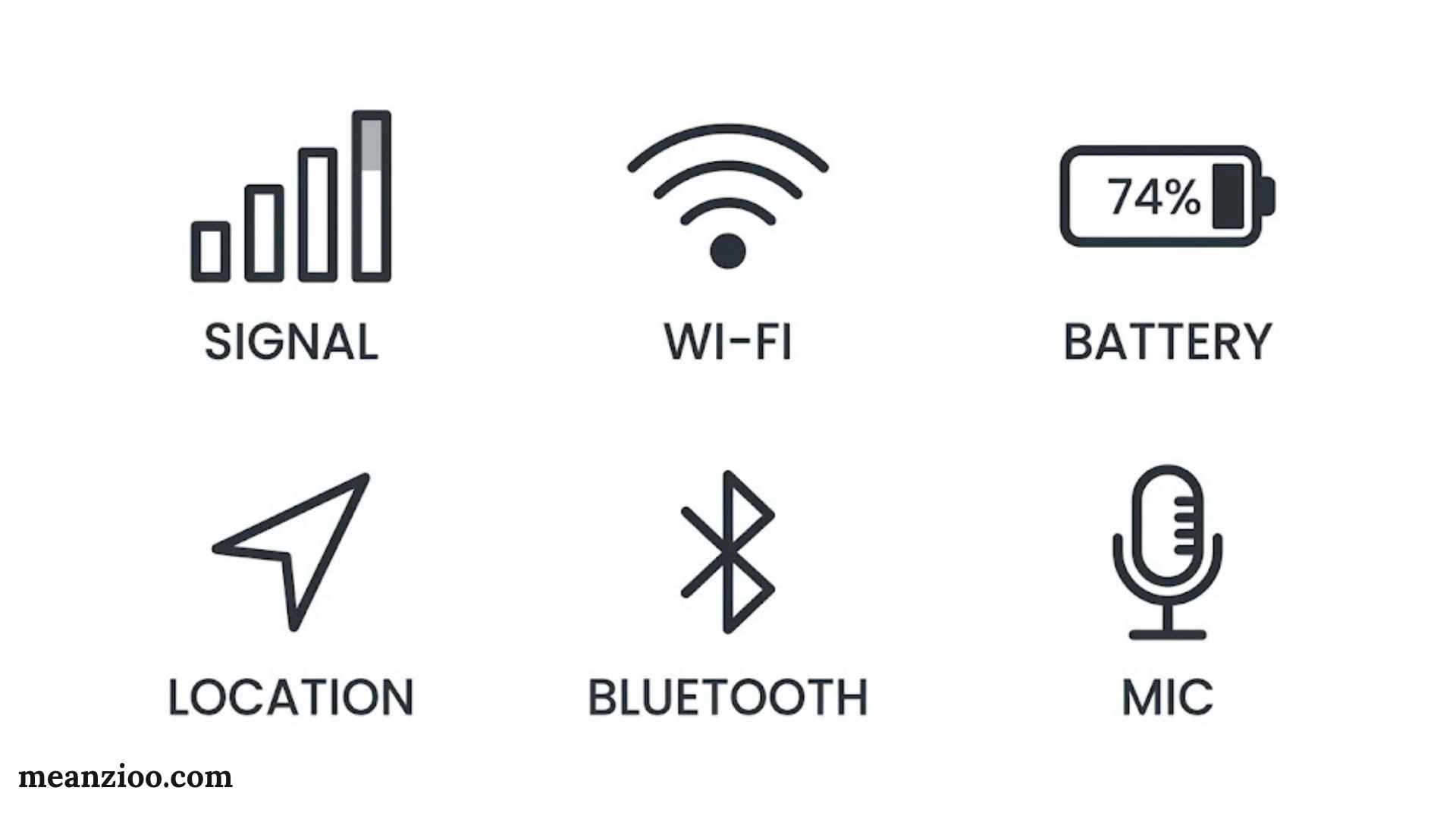
The symbols at the top of your iPhone screen tell you more than you might think. They show whether you’re connected to Wi-Fi, how much battery remains, whether an app is using your camera, and which features are currently active.
Some icons are easy to recognize. Others, such as a hollow location arrow, an SOS label, or a small orange dot, can leave you wondering what your iPhone is doing.
The good news? Most of these symbols have a simple explanation. Once you understand them, you can identify common problems, manage your settings, and make better decisions about your privacy.
This guide explains the most important iPhone symbols and meanings, including status bar icons, network indicators, battery symbols, privacy alerts, and activity indicators. You’ll also learn how to identify unfamiliar icons and troubleshoot them when something doesn’t look right.
Quick answer: The symbols at the top of an iPhone screen are called status bar icons or status indicators. They display information about cellular reception, Wi-Fi, battery charge, privacy activity, and certain active features. Their appearance and location depend on your iPhone model, iOS version, and current activity.
What Do the Symbols at the Top of an iPhone Mean?

The iPhone status bar is the narrow area that displays important information about your device. Depending on your model, it sits around the top corners of the screen, beside the notch or Dynamic Island, or within the top area of Control Center.
These icons help you understand your phone’s current state without opening multiple apps.
For example, the cellular bars show your network signal strength, while the battery icon tells you how much charge remains. A green or orange dot serves a different purpose by indicating camera or microphone activity.
The following table explains the most common iPhone screen symbols at a glance.
| Symbol or label | Meaning | Where to check |
| Cellular signal bars | Cellular reception strength | Status bar or Control Center |
| Wi-Fi fan | Wi-Fi connection | Status bar or Settings |
| 5G, LTE, or 4G | Cellular network technology | Status bar |
| Battery outline | Remaining battery charge | Status bar |
| Lightning bolt | Battery charging | Status bar |
| Yellow battery | Low Power Mode is enabled | Battery settings |
| Airplane | Airplane Mode is on | Control Center |
| Green dot | Camera in use, with or without microphone access | Control Center |
| Orange dot | Microphone in use without camera access | Control Center |
| Location arrow | Location-related activity | Location Services settings |
| Crescent moon | Do Not Disturb is active | Control Center |
| SOS | Regular cellular service isn’t available, but emergency calling may be possible | Status bar |
| VPN | VPN connection is active when the icon appears | VPN settings |
| Alarm clock | An alarm is set, when displayed | Clock app |
| Screen recording indicator | Screen recording is active | Recording controls |
Apple maintains an official reference for iPhone status icons and their meanings. Use it alongside this guide if your screen looks different from the examples described below.
Apple Support+1
One important detail: not every iPhone icon stays visible all the time. Some appear only during specific activities, and others may show up in Control Center instead of the main status bar.
iPhone Status Bar Icons and Their Meanings
Understanding the status bar starts with the icons you’re most likely to see every day. These indicators usually relate to your network connection, battery, or an active feature.
Cellular Signal Bars
The vertical bars or dots at the top of your iPhone show the strength of your cellular signal.
More filled bars generally mean your phone has a stronger connection to your carrier. Fewer bars can indicate weak reception, especially in basements, elevators, rural areas, or buildings with thick walls.
However, strong reception doesn’t guarantee fast internet. Network congestion, carrier limitations, and other factors can affect your connection speed.
If the bars disappear and your phone displays No Service, it isn’t connected to a cellular network. Check your coverage, SIM or eSIM settings, and carrier status.
Wi-Fi Symbol
The fan-shaped Wi-Fi icon means your iPhone is connected to a Wi-Fi network.
Wi-Fi can provide internet access without using your cellular data allowance. It’s particularly useful for video streaming, large downloads, and video calls.
However, seeing the Wi-Fi symbol doesn’t guarantee that the network has working internet access. A router might be connected but unable to reach the internet.
If websites won’t load, try opening another website or app. You can also visit Settings → Wi-Fi to check the connected network.
Lock Symbol
A lock symbol can have different meanings depending on where it appears.
For example, a padlock with a circular arrow in Control Center represents Portrait Orientation Lock. When enabled, it prevents the screen from automatically rotating into landscape orientation.
A different lock symbol may indicate that your iPhone is locked or that a particular feature or interface element has a locked state.
Always consider the icon’s shape and location before interpreting it.
Blue, Green, and Red Status Indicators
Colored indicators aren’t interchangeable. Their meanings depend on the feature and the area of the interface where they appear.
- Green dot: An app is using the camera, either alone or with the microphone.
- Orange dot: An app is using the microphone without the camera indicator.
- Blue indicator or status area: May relate to a specific active feature or interface state. Check the surrounding activity rather than assuming one universal meaning.
- Red recording indicator: May identify an active recording or other recording-related activity, depending on the iOS version and interface.
If you see an unexpected indicator, open Control Center or inspect the relevant settings. The surrounding context is often more useful than the color alone.
Cellular and Network Symbols on iPhone
Your iPhone uses several network symbols to show which types of connections are available. These labels can change as you move between locations or your carrier switches network technologies.
5G, 5G+, 5G UW, and 5G UC
The label 5G indicates that your iPhone can connect to a supported fifth-generation cellular network.
Some carriers use additional labels to distinguish their network offerings.
| Network label | What it means |
| 5G | A supported 5G network is available |
| 5G+ | A carrier-specific 5G label, used by some providers |
| 5G UW | Verizon’s Ultra Wideband 5G branding |
| 5G UC | T-Mobile’s Ultra Capacity 5G branding |
| 5G E | AT&T’s label for an enhanced LTE connection, not true 5G |
| LTE | Long-Term Evolution cellular technology |
| 4G | A fourth-generation network label, with exact usage depending on carrier and region |
| 3G | An older generation of cellular technology |
| E | EDGE, an older mobile data technology |
| G | GPRS or, on some legacy networks, a related older technology |
These labels don’t guarantee a particular internet speed. Actual performance depends on coverage, network congestion, carrier deployment, and your device.
Some older labels, including 3G, EDGE, and GPRS, may still matter when interpreting legacy network references. However, their availability depends on whether carriers in your region continue to support those technologies.
Apple Support (CA)+1
What Does SOS or SOS Only Mean on an iPhone?
Seeing SOS or SOS Only means your iPhone can’t connect to your regular cellular provider for normal service. Emergency calling may still be available through another supported network.
Common causes include:
- You’re in an area with poor or no coverage from your carrier.
- Your carrier is experiencing an outage.
- Your SIM card or eSIM has a problem.
- Your cellular plan or account needs attention.
- Your phone temporarily can’t register on the network.
Try these steps to restore service:
- Open Settings and enable Airplane Mode.
- Wait at least 15 seconds.
- Turn Airplane Mode off.
- Restart your iPhone if the problem continues.
- Check your SIM or eSIM and contact your carrier if necessary.
Apple Support
Remember that SOS isn’t simply another name for weak internet. It means regular cellular service isn’t available, although emergency calling may remain possible.
Satellite Symbol
On supported iPhone models, a satellite-related indicator can signal the availability of certain satellite features in your location.
These may include Emergency SOS, Find My, Messages, or Roadside Assistance through satellite, depending on the service and region.
Satellite communication is designed for situations where ordinary cellular and Wi-Fi connections aren’t available. It isn’t the same as connecting to a regular mobile network.
Dual SIM and Dual Cellular Signal Icons
If your iPhone uses Dual SIM, you may see two sets of cellular signal indicators.
This is normal. The phone can maintain two cellular lines, such as a physical SIM and an eSIM, or two eSIMs on supported models.
The indicators help distinguish the signal status of each line. They don’t necessarily mean both lines are using cellular data simultaneously.
To identify your lines, open Control Center and review the carrier information. You can also visit Settings → Cellular to check which line handles calls and mobile data.
Airplane Mode Symbol
The airplane icon means Airplane Mode is enabled.
This mode disables cellular connections and may disable other wireless functions initially. You can often turn Wi-Fi and Bluetooth back on separately while leaving Airplane Mode enabled.
If your iPhone suddenly loses cellular service and shows an airplane, check Control Center. You may have enabled the feature accidentally.
VPN Symbol
A VPN (Virtual Private Network) routes network traffic through a VPN service or network connection.
When a VPN is connected, a VPN indicator may appear in the status bar. However, the icon isn’t guaranteed to remain visible on every iPhone configuration.
To inspect your connection, open Settings → General → VPN & Device Management or the relevant VPN app.
A VPN can help protect traffic on certain networks, but it doesn’t make every online activity anonymous. The protection you receive depends on the VPN provider, configuration, and services you’re using.
Wi-Fi Calling and Personal Hotspot Symbols
Wi-Fi Calling lets supported carriers route calls over Wi-Fi when the feature is available and configured. It can help when cellular reception is weak.
Personal Hotspot lets your iPhone share its internet connection with another device. Depending on the connection, you may see hotspot activity in the status area or Dynamic Island.
Don’t confuse an iPhone connected to another device’s hotspot with an iPhone providing its own hotspot. These are different connection states.
You can check Wi-Fi Calling through your carrier’s settings and manage Personal Hotspot under Settings → Personal Hotspot or the relevant Cellular settings.
iPhone Battery and Power Symbols
Battery indicators tell you how much charge remains and whether your iPhone is charging or using a power-saving feature.
Battery Icon and Battery Percentage
The battery outline represents your iPhone’s remaining charge. Depending on your settings and model, you may also see a numerical percentage.
To enable the percentage where supported, open Settings → Battery and turn on Battery Percentage.
The percentage offers a more precise reading than the battery graphic alone. For example, seeing 18% makes it easier to estimate how urgently you need a charger than relying only on a small battery outline.
Lightning Bolt Inside the Battery
A lightning bolt indicates that your iPhone is charging.
If the icon doesn’t appear as expected, check the charging cable, power adapter, charging port, and power source. Wireless charging users should also check that the phone sits correctly on the charger.
If charging repeatedly stops or the battery doesn’t gain power, try a different compatible charger and cable. Persistent problems may require battery or hardware diagnostics.
Yellow Battery Icon: Low Power Mode
A yellow battery icon means Low Power Mode is enabled.
This feature reduces energy use by limiting certain background processes and device functions. It can help your iPhone last longer when you can’t charge it.
To disable it, go to Settings → Battery → Low Power Mode. You may also be able to control it from Control Center.
Yellow doesn’t mean the battery is damaged. It indicates a power-saving setting.
Red Battery Icon
A red battery generally means your iPhone’s charge is low.
Connect the phone to a charger before it shuts down. If the battery repeatedly drains unusually fast, review battery usage in Settings to see which apps consume the most power.
A low battery is a normal operating condition, not automatically a sign of a faulty battery.
Bluetooth Accessory Battery
Some connected Bluetooth accessories, including supported AirPods, display their battery levels on your iPhone.
You may find this information in a battery widget, the connected accessory’s interface, or other supported iOS screens. It isn’t necessarily a permanent icon at the top of your display.
If the battery level doesn’t appear, confirm that the accessory is connected and supports battery reporting.
Green Dot, Orange Dot, and iPhone Privacy Indicators
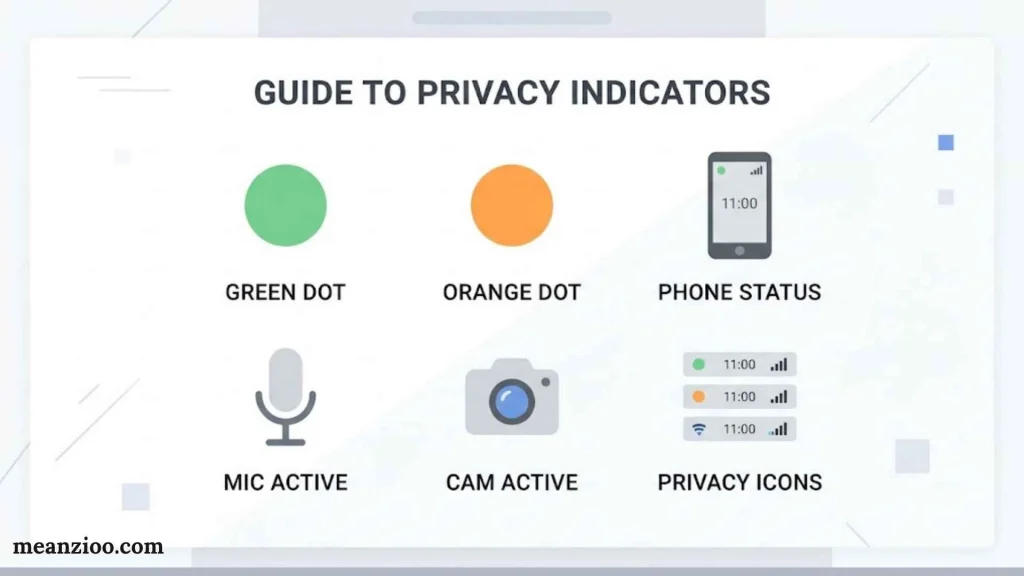
Privacy indicators help you recognize when apps access sensitive hardware. They are among the most important iPhone symbols and meanings to understand because they give you a quick way to investigate camera and microphone activity.
Apple introduced these indicators in iOS 14.
Apple Support (IE)+1
What Does the Green Dot Mean on an iPhone?
A green dot means an app is using your camera, either by itself or together with your microphone.
You might see it when taking a photo, recording a video, or participating in a video call. Those are ordinary uses of the camera.
If the dot appears when you aren’t expecting camera activity, check which app recently accessed it.
To investigate:
- Open Control Center by swiping down from the top-right corner on a Face ID iPhone.
- Look for the privacy information identifying the app using or recently using the camera.
- Open Settings → Privacy & Security → Camera.
- Turn off camera access for any app that doesn’t need it.
The green dot is a privacy safeguard, not proof that someone has hacked your phone.
What Does the Orange Dot Mean on an iPhone?
An orange dot means an app is using your microphone without the camera indicator.
Common examples include voice recordings, audio calls, and apps that need to capture speech.
If you don’t recognize the activity, open Control Center to investigate. Then review Settings → Privacy & Security → Microphone and revoke access when appropriate.
Apple also supports an orange square instead of a dot when the Differentiate Without Color accessibility setting is enabled.
What Does a Blue Dot or Blue Status Indicator Mean?
Blue indicators can be confusing because blue appears in several iPhone features.
A blue area may relate to a particular active feature, while a blue dot or marker within an app can represent something entirely different. For example, navigation apps may use blue to mark your position or route.
There isn’t one universal meaning for every blue iPhone indicator. Check its exact shape, location, and surrounding interface.
If the indicator relates to location activity, review Location Services. If it appears during a call, navigation session, or other activity, inspect the controls for that feature.
How to See Which App Is Using Your Camera or Microphone
The quickest way to investigate an unexpected privacy dot is through Control Center.
On a Face ID iPhone, swipe down from the top-right corner. On an iPhone with a Home button, swipe up from the bottom edge.
Look for the privacy information near the top of Control Center. It can help identify an app that is currently using, or has recently used, your camera or microphone.
Next, review the app’s permissions under Settings → Privacy & Security. Disable access if the app doesn’t need it.
How to Check App Privacy Permissions
Your iPhone lets you manage permissions for several sensitive features, including:
- Camera: Which apps can take photos or videos.
- Microphone: Which apps can record audio.
- Location Services: Which apps can access your location.
- Bluetooth: Which apps can access Bluetooth functionality.
- Local Network: Which apps can discover or communicate with devices on your local network.
Open Settings → Privacy & Security, then select the feature you want to review.
You can also use App Privacy Report, where available, to review certain app access and network activity after enabling it. This provides more context than a single status icon.
An unfamiliar indicator deserves a quick check, but don’t jump straight to the conclusion that your iPhone is being monitored. Start with the built-in privacy controls.
iPhone Location Symbols and Arrow Meanings
Location indicators help you understand when apps or system services use your location. However, the exact meaning of a location arrow depends on its appearance and the context in which it appears.
What Does the Location Arrow Mean on an iPhone?
The location arrow indicates activity related to Location Services. An app might use your location to provide navigation, local weather, nearby recommendations, or location-based reminders.
For example, Maps needs your location to provide turn-by-turn directions. A weather app may use it to display local conditions.
To review location access, follow these steps:
- Open Settings.
- Tap Privacy & Security.
- Select Location Services.
- Choose an app to review its permission.
- Adjust access if the app doesn’t need your location.
You can choose from options such as Never, Ask Next Time or When I Share, While Using the App, and Always, depending on the app and its available settings.
What Does a Hollow Location Arrow Mean?
A hollow arrow is associated with certain location-related conditions in iOS. Its meaning can depend on the location permission or system activity involved.
Don’t assume that a hollow arrow always means an app is secretly tracking you. Instead, review the app’s location permissions and check Apple’s current status-icon guide for your iOS version.
What Do Purple, Gray, and Other Location Arrows Mean?
Online discussions sometimes assign fixed meanings to purple, gray, white, or blue location arrows. These explanations can become misleading when they ignore iOS versions and interface differences.
The most reliable approach is to inspect the actual indicator and review Location Services.
Pay particular attention to these settings:
- Allow Location Access: Determines when an app can access your location.
- Precise Location: Controls whether an app receives your precise location or a less precise area.
- Location Services: Provides an overview of location permissions across apps.
- Share My Location: Manages location sharing through supported Apple services.
Remember that app location permissions and location sharing are separate controls. An app’s permission doesn’t automatically tell you whether you’re sharing your location with a particular person.
Focus, Do Not Disturb, and Notification Symbols
Your iPhone also uses status indicators to show when certain notification and attention settings are active.
Focus Mode Icon
Focus helps you manage notifications during work, sleep, driving, or other activities.
When a Focus is active, its associated icon may appear in the status bar. The symbol depends on the selected Focus and your configuration.
Common Focus modes include:
- Do Not Disturb: Reduces interruptions from notifications and calls.
- Sleep: Supports a quieter notification experience around your sleep schedule.
- Driving: Helps reduce distractions while driving.
- Work: Limits interruptions during work hours.
- Personal: Applies notification preferences for personal time.
To check your active Focus, open Control Center and look for the Focus control. Tap it to review the current mode or switch it off.
Do Not Disturb Symbol
The crescent moon is commonly associated with Do Not Disturb.
When this Focus is active, your iPhone can silence notifications according to your settings. You can configure which people or apps are allowed to notify you and whether the mode activates automatically.
If calls or notifications aren’t making sounds, check Focus before assuming your speaker is broken.
Silent Mode and Ring/Silent Indicators
Silent Mode reduces or silences certain alerts and ringtones. How you enable it depends on your iPhone model.
Older models may have a Ring/Silent switch. Supported newer models may use the Action button or software controls.
Silent Mode doesn’t necessarily mute every sound. Media playback, alarms, and other sounds can behave differently depending on the feature and settings.
If your iPhone isn’t ringing, check Silent Mode, Focus, ringtone volume, and call-related settings.
Alarm and Timer Icons
An alarm or timer indicator may appear in the status area or another part of the interface, depending on the iPhone model and iOS version.
If you see an unfamiliar clock-related symbol, open the Clock app to check active alarms and timers.
You can also review scheduled alarms if your iPhone wakes you unexpectedly or an alert sounds at an inconvenient time.
Bluetooth, AirDrop, AirPlay, and Other Connectivity Symbols
Not every connectivity feature has a permanent status bar icon. Some are easier to identify through Control Center.
Bluetooth Symbol
The Bluetooth symbol relates to short-range wireless connections.
Your iPhone can use Bluetooth to connect to headphones, speakers, hearing devices, car systems, and other compatible accessories.
However, Bluetooth being enabled doesn’t necessarily mean an accessory is connected. To check active connections, open Settings → Bluetooth or inspect the relevant Control Center controls.
If an accessory won’t connect, check that it’s powered on, charged, within range, and ready to pair.
AirDrop Symbol
AirDrop lets you share photos, files, links, and other supported content with nearby Apple devices.
You can access its controls through Control Center or Settings. The exact interface depends on your iOS version.
AirDrop isn’t a permanent status bar icon, so don’t expect to see it at the top of the screen whenever the feature is available.
If file sharing doesn’t work, check AirDrop’s receiving settings, the other device’s compatibility, and the devices’ wireless connections.
AirPlay and Screen Mirroring Symbols
AirPlay lets you stream supported audio or video to compatible devices. Screen Mirroring shares your iPhone’s display with a supported receiver.
These functions are related, but they aren’t identical.
For example, streaming a video to a compatible television doesn’t necessarily mirror everything on your iPhone screen. Screen mirroring, by contrast, shares the display itself.
To check for an active mirroring session, open Control Center and inspect the Screen Mirroring control. Stop the session if you no longer want to share your display.
CarPlay and SharePlay
Apple CarPlay connects a supported iPhone to a compatible vehicle’s infotainment system. It provides access to selected navigation, communication, and audio features.
SharePlay lets users share supported media or activities during compatible calls and sessions.
Both features may display activity indicators in certain interfaces, but neither should be treated as a universal permanent status bar icon.
If you see an unexpected activity indicator while using either feature, check the active session and its controls.
Screen Recording, Calls, Navigation, and Other Active Activities
Some of the most confusing iPhone top bar symbols appear only while a task is underway.
Screen Recording Indicator
When you start screen recording, iOS displays a recording indicator or activity interface. Its exact appearance and location can vary by model and software version.
Screen recording captures activity on your display. Depending on the recording setup and app, microphone audio may also be included.
To stop a recording, use the recording controls or the relevant active indicator. The resulting video is generally saved in Photos.
If you notice recording activity you didn’t start, inspect Control Center and check which activity is running before taking further action.
Phone Calls and FaceTime
During a phone or FaceTime call, your iPhone may display an active-call indicator near the top of the screen.
On supported models, the Dynamic Island can keep certain call controls accessible while you use another app.
Tap the active-call area to return to the call interface. If a call indicator remains visible unexpectedly, check whether a call is still connected.
Navigation and Live Activities
Navigation apps can display ongoing directions through supported interface elements, including the Dynamic Island on compatible iPhones.
Other supported apps may show Live Activities, which provide real-time updates for an ongoing event or task.
For example, a navigation app might show progress toward a destination. A supported delivery app could display the status of an order.
These aren’t necessarily standard status bar icons. Their appearance depends on the app, iOS version, and device model.
Screen Mirroring and External Device Activity
If your iPhone appears to be sharing its screen or playing media elsewhere, check Control Center.
Look for an active Screen Mirroring or AirPlay session and disconnect it if necessary.
This is particularly useful when you share a screen during a meeting or connect to a television and later forget to end the session.
Why Some iPhone Symbols Disappear or Look Different
It’s normal for some iPhone status bar icons to appear temporarily or change position.
Several factors can explain the difference.
- Dynamic Island: Supported models may display ongoing activities in the Dynamic Island rather than a conventional status area.
- iPhone model: Devices with a Home button may arrange indicators differently from Face ID models.
- iOS version: Apple can update the appearance and placement of status icons.
- Carrier and region: Available network labels and cellular features vary by carrier and location.
- Active features: Some indicators appear only while a call, recording, or other task is underway.
- Limited screen space: Not every status detail can remain visible at once.
If an icon disappears, it doesn’t automatically mean the feature has stopped working. Open Control Center or the relevant Settings page to check its actual status.
How to Identify an Unknown Symbol on Your iPhone
Found an unfamiliar icon? Don’t guess. Follow this practical process to narrow down what it means.
Check Where the Symbol Appears
First, identify its location.
- Status bar: Usually indicates network, battery, privacy, or device activity.
- Dynamic Island: May display supported ongoing activities.
- Control Center: Contains quick controls and additional status information.
- Inside an app: May be specific to that app rather than an iOS system symbol.
This first step eliminates many common misunderstandings.
Open Control Center
Control Center provides quick access to wireless connections, Focus, brightness, volume, and other features.
- On an iPhone with Face ID, swipe down from the top-right corner.
- On an iPhone with a Home button, swipe up from the bottom edge.
If you’re trying to identify a privacy indicator, check the information shown near the top. If you’re investigating a connection, inspect the relevant network controls.
Apple Support (UK)+1
Check Recent Activity and Relevant Settings
Next, identify the feature most closely related to the symbol.
| Unfamiliar symbol or issue | Where to investigate |
| Green dot | Control Center and Camera permissions |
| Orange dot | Control Center and Microphone permissions |
| Location arrow | Privacy & Security → Location Services |
| SOS or No Service | Cellular settings and carrier coverage |
| Yellow battery | Settings → Battery |
| Airplane | Control Center or Settings |
| VPN | VPN settings or your VPN app |
| Bluetooth symbol | Settings → Bluetooth |
| Focus or crescent moon | Control Center → Focus |
| Recording indicator | Control Center and recording controls |
Restart or Update Your iPhone if Necessary
If an icon appears stuck after the related activity has ended, restart your iPhone.
Check for an available iOS update if the issue continues. Software updates can address bugs and improve system behavior, although an update isn’t necessary every time an unfamiliar symbol appears.
If the icon persists and you can’t identify it, contact Apple Support. Include your iPhone model, iOS version, and a screenshot if possible.
How to Fix Unfamiliar or Stuck iPhone Status Icons
An unfamiliar icon doesn’t always indicate a problem. However, if a symbol appears unexpectedly or stays visible after an activity ends, a few checks can help.
When a Connectivity Icon Looks Wrong
If your Wi-Fi, cellular, or Bluetooth indicator behaves unexpectedly:
- Check whether the relevant network or accessory is available.
- Toggle the connection off and back on.
- Restart your iPhone if the issue continues.
- Check your carrier settings or contact your carrier if cellular service remains unavailable.
For Wi-Fi problems, test another network if possible. For Bluetooth problems, confirm that the accessory is charged and ready to connect.
When a Privacy Indicator Appears Unexpectedly
If a green or orange indicator appears when you’re not using the camera or microphone, investigate it rather than ignoring it.
- Open Control Center and check the app associated with the activity.
- Review the app’s camera or microphone permissions.
- Close the relevant activity if it’s no longer needed.
- Remove unnecessary permissions.
- Delete an app if you don’t trust it or no longer need it.
A privacy indicator alone doesn’t prove that an app is malicious. Start with the information provided by iOS before drawing conclusions.
When an Icon Remains After an Activity Ends
If a symbol seems stuck, check whether the related feature is still active.
For example, an ongoing call, navigation session, or screen-sharing connection may explain an activity indicator. End the session if appropriate.
If the icon remains after you’ve checked the relevant controls, restart your iPhone and install any available software updates when practical. Contact Apple Support if the problem persists.
Frequently Asked Questions About iPhone Symbols
What do the symbols at the top of my iPhone mean?
The symbols at the top of your iPhone screen display information about cellular reception, Wi-Fi, battery charge, privacy activity, and certain active features. Their meanings depend on the icon, its location, and your iPhone model.
What does the green dot mean on an iPhone?
The green dot indicates that an app is using your camera, either alone or together with your microphone. Open Control Center to identify the associated app and review its camera permissions if the activity seems unexpected.
What does the orange dot mean on an iPhone?
The orange dot indicates that an app is using your microphone without the camera indicator. It commonly appears during audio recordings and calls. You can investigate the activity through Control Center and review microphone access in Settings.
What does SOS Only mean on an iPhone?
SOS Only means your iPhone can’t connect to your regular cellular provider for normal service. Emergency calling may still be possible through another supported network. Check your coverage, SIM or eSIM, and carrier service if the message persists.
Why is there an arrow at the top of my iPhone?
A location arrow generally indicates location-related activity. Its precise meaning depends on the arrow’s appearance and context. Open Settings → Privacy & Security → Location Services to review which apps can access your location.
Why can’t I see all my iPhone status bar icons?
Some icons appear only while a feature is active. Others may appear in the Dynamic Island or Control Center instead of the main status bar. Your iPhone model, iOS version, carrier, and current activity can all affect which symbols appear.
How do I find out which app is using my camera or microphone?
Open Control Center and check the privacy information near the top. Then visit Settings → Privacy & Security → Camera or Microphone to review and change app permissions.
Does a green or orange dot mean my iPhone has been hacked?
No. These dots are built-in privacy indicators, not evidence of hacking. They show when an app accesses your camera or microphone. If the activity surprises you, identify the app and review its permissions.
Why does my iPhone show SOS instead of cellular bars?
Your iPhone may be outside your carrier’s coverage area, experiencing a network problem, or having trouble with its SIM or eSIM. Try toggling Airplane Mode, restarting the device, and checking with your carrier if service doesn’t return.
Where can I find a complete guide to iPhone icons?
Apple’s official iPhone status icon guide explains common system indicators. You can also consult the iPhone User Guide for model-specific instructions and feature details.
Final Thoughts on iPhone Symbols and Their Meanings
Understanding iPhone symbols on top of screen makes it easier to recognize what’s happening on your device. Cellular bars, Wi-Fi, and battery icons help you monitor everyday functions, while privacy indicators give you a way to investigate camera and microphone access.
When you encounter an unfamiliar symbol, check its location first. Then open Control Center or the relevant Settings page to learn more.
Most importantly, don’t assume an unusual icon signals a security problem. Many indicators simply show that a normal iPhone feature is active.
If a symbol remains unexplained, compare it with Apple’s official documentation or contact Apple Support. A quick check is often all it takes to solve the mystery.

I’m Ryan Mitchell, and I write about modern English, trending slang, and online expressions. I enjoy explaining the meanings, origins, and real-life usage of popular words in a simple way. I believe learning slang is an important step toward understanding today’s English-speaking culture. Through my work, I aim to help readers speak more naturally and stay updated with the latest language trends.
 Charlotte Hayes