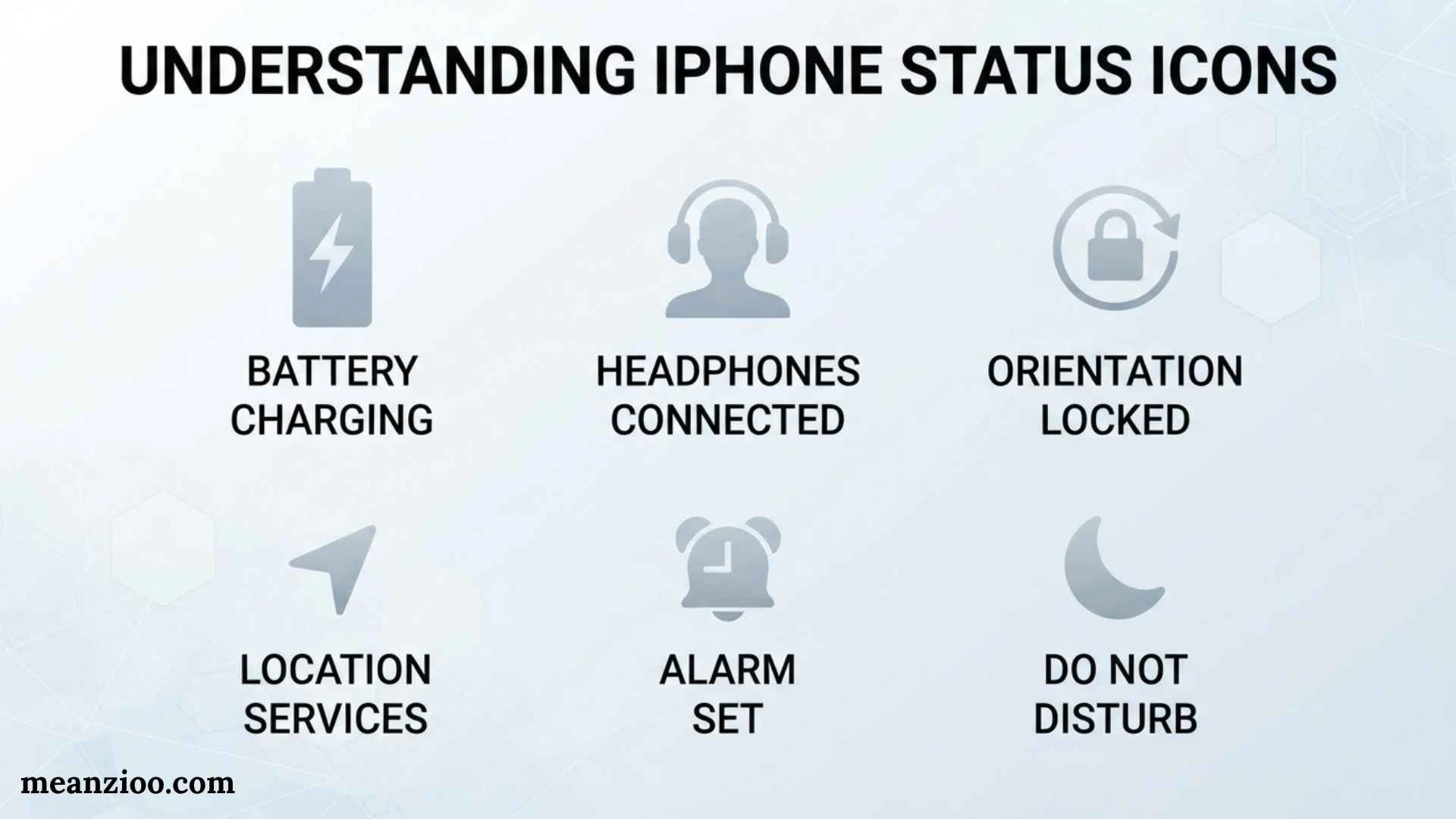
iPhone symbols give you quick information about your phone without requiring you to open an app or search through settings. A small icon can tell you that your iPhone is connected to Wi-Fi, charging, using your location, recording the screen, connected to a VPN, or using the microphone.
Some symbols are easy to understand, while others can appear unexpectedly and leave you wondering what they mean. This is especially common when you update iOS, connect a new accessory, activate a Focus mode, or use a privacy-sensitive feature.
This guide explains common iPhone symbols and their meanings, including status bar icons, Control Center symbols, battery indicators, network icons, privacy indicators, Focus symbols, connection icons, and warning indicators.
What Are iPhone Symbols?
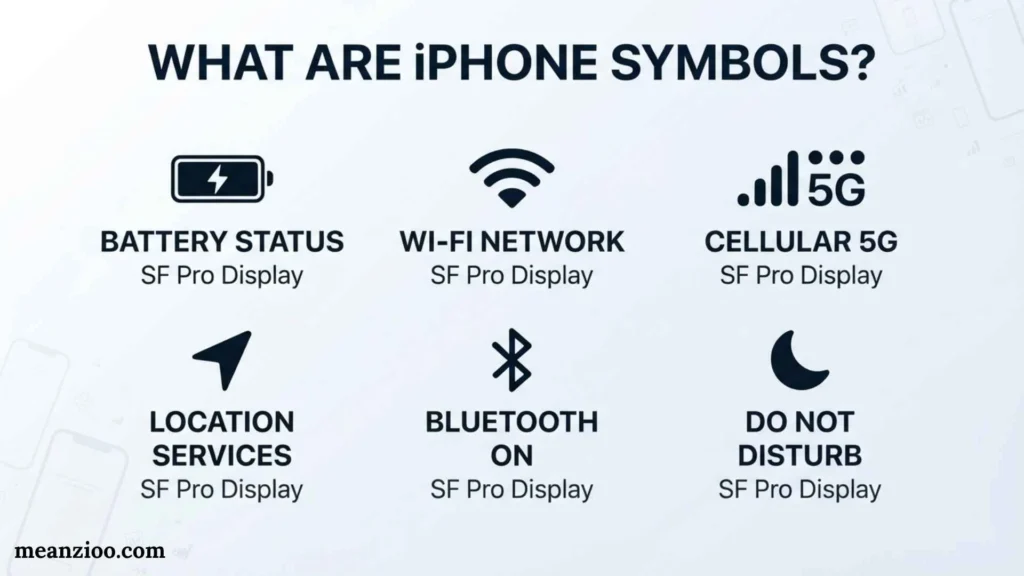
iPhone symbols are small icons that communicate information about your device, connections, settings, apps, and active features.
You can find them in several places, including:
- The status bar
- Control Center
- Lock Screen
- Home Screen
- Settings
- Phone app
- Messages
- Camera
- Battery settings
- Privacy settings
- Sharing menus
The exact appearance and location of some symbols can change depending on your iPhone model and iOS version.
iPhone Status Bar Symbols
The status bar is one of the first places to check when you want to know what your iPhone is doing.
Common status indicators include:
- Cellular signal
- Cellular network type
- Wi-Fi
- Battery
- Charging
- Location Services
- Personal Hotspot
- Focus
- VPN
- Privacy indicators
- Airplane Mode
On newer iPhone models, some information can appear around the Dynamic Island rather than in a traditional status-bar layout.
iPhone Symbols and Meanings at a Glance
| iPhone symbol | Meaning |
| Cellular bars | Cellular signal strength |
| Wi-Fi | Connected to a Wi-Fi network |
| 5G | Connected to a 5G cellular network |
| LTE | Connected to an LTE network |
| Battery | Remaining battery level |
| Charging indicator | iPhone is receiving power |
| Airplane | Airplane Mode is enabled |
| Crescent moon | Focus or Do Not Disturb is active |
| Orange dot | Microphone is being used |
| Green dot | Camera or camera and microphone are being used |
| Location arrow | Location Services are being used |
| VPN | VPN connection is active |
| Hotspot | Personal Hotspot is active or being used |
| Lock with circular arrow | Rotation Lock |
| Alarm | An alarm is scheduled |
| AirDrop | AirDrop/sharing controls |
| Screen recording indicator | Screen recording is active |
Cellular Signal Symbol
The cellular signal icon shows the strength of your connection to your mobile carrier.
The more signal bars displayed, the stronger the cellular connection generally is.
A weak signal may result in:
- Dropped calls
- Slow mobile data
- Difficulty sending messages
- Problems loading websites
- Poor-quality voice calls
If your iPhone displays No Service, it means the device is not currently connected to your carrier’s cellular network.
Possible reasons include:
- You are outside the carrier’s coverage area.
- Airplane Mode is enabled.
- There is a temporary network problem.
- Your SIM or eSIM has an issue.
- Your cellular account or settings require attention.
5G, LTE, 4G, and Other Network Symbols
Your iPhone may display different cellular network indicators depending on your carrier, location, iPhone model, and available network technology.
Common indicators include:
- 5G
- 5G+
- 5G UC
- LTE
- 4G
- 3G
- E
These labels do not all mean exactly the same thing across carriers. For example, additional 5G labels can represent different types of 5G service according to the carrier.
If your network symbol changes while traveling, your iPhone may simply be moving between available cellular technologies.
Wi-Fi Symbol
The Wi-Fi symbol indicates that your iPhone is connected to a Wi-Fi network.
Wi-Fi can provide internet access without using your cellular data connection.
You may connect your iPhone to Wi-Fi at:
- Home
- School
- Office
- Hotels
- Restaurants
- Airports
- Public locations
If the Wi-Fi symbol disappears, check Settings → Wi-Fi to see whether the phone has disconnected or Wi-Fi has been disabled.
Battery Symbol
The battery icon gives you a quick visual indication of your remaining battery charge.
A fuller icon generally means more battery remains, while a nearly empty icon means the device needs charging soon.
On supported iPhones and iOS versions, you can also enable a numerical battery percentage.
Go to:
Settings → Battery
to find battery-related settings.
Charging Symbol
When your iPhone is connected to power, the battery indicator can show that the device is charging.
Charging can occur through:
- A wired charging cable
- A compatible wireless charger
- A compatible MagSafe charger
If your iPhone does not appear to be charging, check the cable, adapter, power source, charging port, or wireless charging alignment.
Low Battery Symbol
A low-battery warning appears when your iPhone’s remaining charge becomes low.
You can reduce battery usage by:
- Lowering screen brightness
- Closing unnecessary high-power activities
- Using Low Power Mode
- Limiting background activity
- Charging the device
If your battery drains unusually quickly on a regular basis, open Settings → Battery to review battery usage.
Airplane Mode Symbol
The airplane icon means Airplane Mode is enabled.
Airplane Mode changes wireless communication settings on the iPhone, including cellular connectivity. You can access it through Control Center or:
Settings → Airplane Mode
Depending on your settings, you can manually turn certain wireless features back on while Airplane Mode remains enabled.
Bluetooth Symbol
Bluetooth allows your iPhone to connect wirelessly with compatible accessories.
Examples include:
- AirPods
- Headphones
- Speakers
- Keyboards
- Game controllers
- Vehicles
- Other Bluetooth accessories
You can manage Bluetooth connections through:
Settings → Bluetooth
or use Control Center for quick access to wireless controls.
Personal Hotspot Symbol
Personal Hotspot allows other devices to use your iPhone’s cellular data connection.
It can be useful when a laptop or tablet does not have its own internet connection.
You might use Personal Hotspot with:
- Mac computers
- Windows laptops
- iPads
- Other smartphones
- Tablets
Because hotspot activity uses your iPhone’s cellular connection and can consume battery, monitor your data and battery usage when using it for long periods.
Location Services Symbol
The location arrow indicates that an app or system feature is using Location Services.
Location access can support features such as:
- Maps
- Navigation
- Weather
- Find My
- Location-based reminders
- Local search
- Photos
You can control location permissions through:
Settings → Privacy & Security → Location Services
Different arrow appearances can provide additional information about location access.
Orange Dot on iPhone
The orange dot is a privacy indicator.
It means that an app is using your iPhone’s microphone.
You might see the orange dot when:
- Making a phone call
- Recording audio
- Using voice features
- Recording a video with microphone access
- Using an app that requires microphone permission
If you do not expect an app to be using the microphone, check:
Settings → Privacy & Security → Microphone
You can review which apps have microphone permission.
Green Dot on iPhone
The green dot is another privacy indicator.
It means an app is using the camera, or the camera and microphone together.
You might see it when:
- Taking a photo
- Recording video
- Making a video call
- Using an app that accesses the camera
If the green indicator appears unexpectedly, review your camera permissions under:
Settings → Privacy & Security → Camera
Focus Mode Symbol
Focus modes help manage notifications and interruptions.
Examples include:
- Do Not Disturb
- Personal
- Work
- Sleep
- Driving
- Fitness
When a Focus mode is active, its icon can appear on your iPhone.
You can manage Focus settings through:
Settings → Focus
Each Focus can have its own notification rules, people, apps, and schedules.
Do Not Disturb Symbol
The crescent moon is commonly associated with Do Not Disturb.
When Do Not Disturb is enabled, your iPhone can silence or limit certain notifications and interruptions according to your settings.
If you suddenly stop receiving normal notifications, check Control Center or Settings → Focus.
The crescent moon can also be associated with a Focus configuration rather than a permanently separate Do Not Disturb feature.
VPN Symbol
A VPN indicator can appear when your iPhone is connected to a VPN.
A VPN may be configured for:
- Work
- School
- Business networks
- Privacy-related purposes
- Organizational access
If you see a VPN indicator and do not recognize the connection, check your VPN settings and installed configurations.
AirDrop Symbol
AirDrop is Apple’s feature for sharing compatible content with nearby Apple devices.
You can use AirDrop to share:
- Photos
- Videos
- Documents
- Websites
- Locations
- Contacts
- Other supported content
AirDrop settings can be found under:
Settings → General → AirDrop
You can also access AirDrop controls through Control Center.
Share Symbol
The familiar square with an upward arrow is the Share button.
It appears throughout iOS and provides options for sending or saving content.
Depending on the item, the Share menu may include:
- AirDrop
- Messages
- Notes
- Copy
- Save to Files
- Social apps
- Other compatible applications
The available options depend on the content and apps installed on your iPhone.
Lock Symbol
A lock symbol can appear in different parts of iOS for different purposes.
For example, a lock combined with a circular arrow is associated with Rotation Lock in Control Center.
The lock symbol on the Lock Screen can simply indicate that the iPhone is locked.
Always consider where the icon appears before interpreting it.
Rotation Lock Symbol
The Rotation Lock icon generally looks like a padlock surrounded by a circular arrow.
When Rotation Lock is enabled, the screen stays in its current supported orientation instead of automatically rotating when you turn the device.
To change it:
- Open Control Center.
- Find the Rotation Lock icon.
- Tap it.
- Close Control Center.
If an app does not support landscape mode, the screen may not rotate even when Rotation Lock is disabled.
Alarm Symbol
An alarm indicator means that an alarm is scheduled through the Clock app.
To check your alarms:
- Open the Clock app.
- Tap Alarm.
- Review your scheduled alarms.
- Turn alarms on or off as needed.
This can be helpful when you wake up and notice an alarm-related symbol but do not remember setting one.
AirPods and Headphone Symbols
When AirPods or compatible headphones connect to your iPhone, iOS can show information about the connected accessory.
Depending on the device, you may also see battery information.
These indicators can help you determine:
- Which accessory is connected
- Whether audio is being sent to the accessory
- Whether the accessory needs charging
- Whether your AirPods are connected correctly
You can check connected Bluetooth accessories under Settings → Bluetooth.
CarPlay Symbol
CarPlay connects a compatible iPhone with a supported vehicle system.
It can provide access to supported features such as:
- Maps
- Phone
- Messages
- Music
- Podcasts
- Siri
The exact CarPlay indicator can vary according to your iPhone, iOS version, and vehicle.
Microphone and Dictation Symbols
The microphone symbol can appear when you use voice-related features such as dictation.
Dictation allows you to speak text instead of typing it manually.
You can manage keyboard and dictation settings through:
Settings → General → Keyboard
Microphone permissions for individual apps are controlled separately through privacy settings.
Emergency SOS Symbol
Emergency SOS is designed to help users contact emergency services using supported iPhone features.
Depending on the model, region, and carrier, emergency functions may include different options.
If you want to understand the emergency features available on your device, check:
Settings → Emergency SOS
Emergency capabilities can vary by location, network availability, and iPhone model.
Satellite Symbols
Some newer iPhone models support satellite-based features in supported regions.
Depending on availability, satellite connectivity can support certain emergency or communication functions when cellular and Wi-Fi connections are unavailable.
Satellite features are not available in every country or for every iPhone model.
If you see a satellite-related icon or option, follow the instructions displayed by iOS because the available functionality depends on your location and device.
Control Center Symbols
Control Center gives you quick access to many iPhone functions.
Common Control Center icons include:
- Airplane Mode
- Wi-Fi
- Bluetooth
- Cellular Data
- AirDrop
- Personal Hotspot
- Focus
- Rotation Lock
- Screen Recording
- Flashlight
- Camera
- Calculator
- Brightness
- Volume
The layout can be customized and may look different on different iOS versions.
Screen Recording Symbol
Screen Recording lets you capture what happens on your iPhone display.
It can be useful for:
- Tutorials
- App demonstrations
- Troubleshooting
- Gameplay
- Creating instructional videos
- Showing another person how to perform a task
When screen recording is active, iOS provides a visible indicator so you know that recording is taking place.
Be careful when recording screens that contain passwords, private messages, payment information, or other sensitive content.
Flashlight Symbol
The flashlight icon activates the iPhone’s LED flash as a light.
You can usually access the flashlight from Control Center or the Lock Screen.
On supported iPhones, pressing and holding the flashlight control allows you to adjust brightness.
Camera Symbol
The camera icon provides quick access to the Camera app.
It can appear in Control Center, on the Lock Screen, or in other areas of iOS.
The Camera app provides features such as:
- Photos
- Video
- Portrait
- Panorama
- Slow motion
- Time-lapse
Available camera modes vary by iPhone model.
Calculator Symbol
The calculator icon provides quick access to Apple’s Calculator app.
It is especially useful when you need to perform a calculation without searching through the Home Screen.
The available calculator features depend on the iPhone model and iOS version.
Why Do iPhone Symbols Change?
It is normal for iPhone symbols to change.
An icon can appear or disappear because:
- You connected to Wi-Fi.
- Your cellular network changed.
- A Focus mode became active.
- Your iPhone started charging.
- An app began using your microphone.
- An app accessed your camera.
- Location Services became active.
- A Bluetooth accessory connected.
- Personal Hotspot was enabled.
- Screen recording started.
- You activated Airplane Mode.
A changing icon does not automatically mean your iPhone has a problem.
iPhone Symbols That May Indicate a Problem
Some symbols or messages can indicate that you should investigate a problem.
No Service
Your iPhone is not connected to a normal cellular network.
SOS
Your iPhone may not have normal cellular service. Emergency communication options can depend on your location and available networks.
Weak Signal
A weak cellular signal can affect calls and mobile data.
Low Battery
The battery needs charging soon.
Accessory Warning
An accessory may be unsupported, incompatible, or experiencing a connection problem.
Network Changes
A change between 5G, LTE, 4G, or another network indicator can simply mean that your phone has connected to a different available cellular network.
How to Identify an Unknown iPhone Symbol
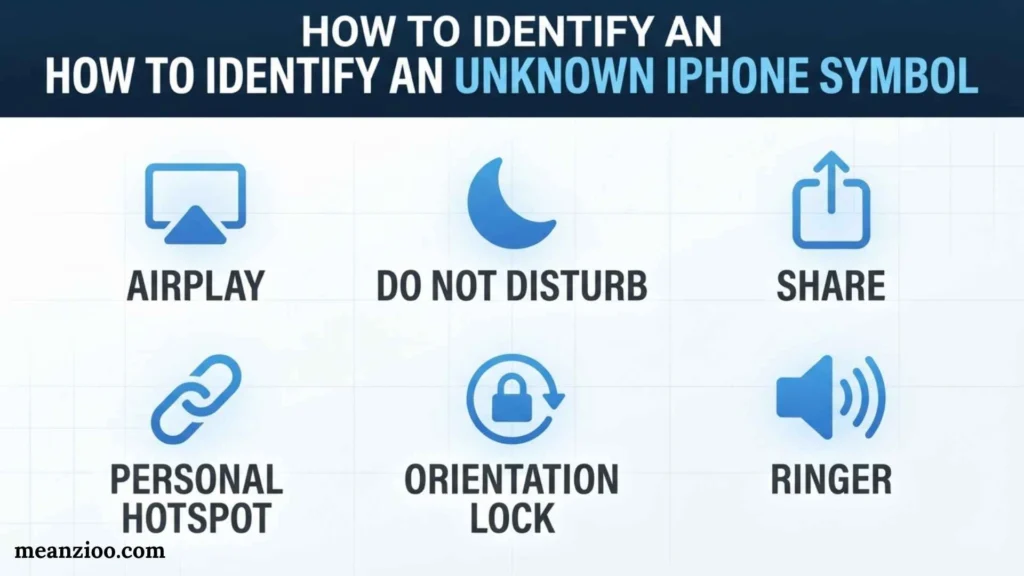
If you see an unfamiliar icon, first look at where it appears.
At the top of the screen
It is probably a status indicator related to connectivity, battery, privacy, or an active feature.
In Control Center
It is likely a shortcut or device control.
On the Lock Screen
It may relate to notifications, Focus, charging, security, or Lock Screen features.
Inside an app
It may belong specifically to that application rather than iOS.
You should also consider what happened immediately before the symbol appeared. For example, if you connected AirPods and suddenly saw a new indicator, the symbol may be related to that accessory.
Do iPhone Symbols Mean the Same Thing on Every Model?
Not always.
The appearance and location of symbols can vary depending on:
- iPhone model
- iOS version
- Carrier
- Region
- Active features
- Connected accessories
- Device settings
Newer iPhones may also display information differently because of features such as the Dynamic Island.
For this reason, an icon shown on an older iPhone may not look exactly the same on a newer model.
How to Check iPhone Settings for an Unknown Symbol
If you are unsure about an icon, check the most relevant settings area.
For connectivity:
Settings → Wi-Fi
Settings → Bluetooth
Settings → Cellular
For privacy:
Settings → Privacy & Security
For battery:
Settings → Battery
For Focus:
Settings → Focus
For emergency features:
Settings → Emergency SOS
For general information:
Settings → General → About
Checking these sections can often reveal which feature is currently active.
Frequently Asked Questions About iPhone Symbols
What do the symbols at the top of my iPhone mean?
They provide information about cellular service, Wi-Fi, battery status, privacy access, and active features. The exact symbols depend on your iPhone model and iOS version.
What does the orange dot mean on an iPhone?
The orange dot means that an app is using your iPhone’s microphone. You can review microphone permissions in Settings → Privacy & Security → Microphone.
What does the green dot mean on an iPhone?
The green dot means that an app is using the camera or the camera and microphone together.
What does the moon symbol mean on an iPhone?
The crescent moon is associated with Do Not Disturb or a Focus mode. It indicates that a Focus setting is active according to your configuration.
What does the airplane symbol mean?
The airplane icon indicates that Airplane Mode is enabled.
What does the Wi-Fi symbol mean?
The Wi-Fi symbol indicates that your iPhone is connected to a Wi-Fi network.
What does the battery icon mean?
The battery icon shows the approximate remaining charge. When the phone is connected to power, the indicator can also show that it is charging.
What does the arrow symbol mean on an iPhone?
A location-related arrow can indicate that Location Services are being used by an app or system feature. The appearance of the arrow can vary according to the type of location access.
What does the VPN symbol mean?
The VPN indicator means that your iPhone has an active VPN connection or configuration.
Why do iPhone symbols look different after an update?
Apple can change the appearance, placement, and behavior of interface elements in new iOS releases. New features can also introduce additional symbols.
How can I find out what an unknown iPhone symbol means?
First check where the symbol appears and what you were doing when it appeared. Then review the related area in Settings, such as Battery, Wi-Fi, Bluetooth, Focus, or Privacy & Security.
Final Thoughts
iPhone symbols make it easier to understand your device at a glance. A single icon can tell you about your battery, cellular connection, Wi-Fi, Bluetooth accessories, privacy access, Focus settings, location use, or an active feature.
The most important symbols to recognize include the Wi-Fi icon, cellular indicators, battery and charging symbols, orange microphone dot, green camera dot, location arrow, Focus symbols, VPN indicator, Airplane Mode, Personal Hotspot, and Rotation Lock.
If an unfamiliar symbol appears, do not assume that it represents a problem. First consider where the icon appears, what you were doing when it appeared, and which settings or accessories are active. Since Apple can change icons and their placement between iOS versions, checking your specific iPhone’s settings and current iOS documentation is the most reliable way to confirm an unfamiliar symbol.

Hi, I’m Charlotte Hayes. I love writing about the newest English slang, pop culture phrases, and digital communication. I spend my time exploring how language evolves across social media, gaming, and everyday conversations. I enjoy sharing easy-to-understand guides that help learners keep up with modern English. My goal is to make every article useful, accurate, and enjoyable for readers around the world.
Books:
- Everyday Slang Dictionary
- Fluent Through Informal English
 Ryan Mitchell