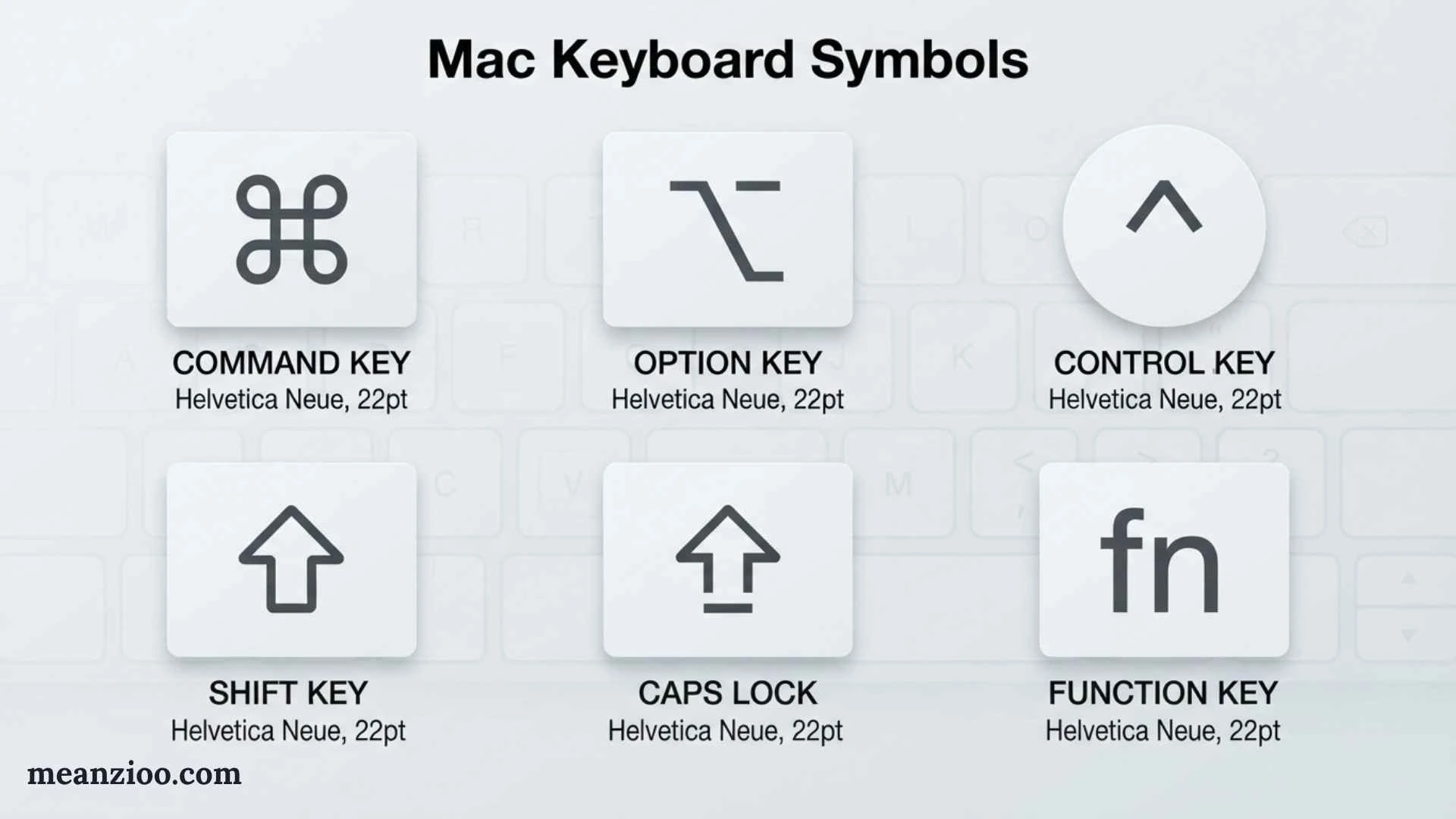
Mac keyboard symbols can seem confusing when you first start using a MacBook or Apple Magic Keyboard. Symbols such as ⌘, ⌥, ⇧, ⌃, ⎋, ↩, ⌫, and ⇥ appear in macOS menus, keyboard shortcuts, tutorials, and help pages, but their meanings are not always obvious.
Some symbols represent physical keys, while others are characters you can type into documents, messages, websites, and social media posts. There are also keyboard icons for brightness, volume, Mission Control, media playback, and other Mac functions.
This guide explains the most common Mac keyboard symbols, what each one means, how to use modifier keys, how to type special characters, and how to find symbols that are not printed on your keyboard.
Mac Keyboard Symbols at a Glance
| Symbol | Name | Main Function |
| ⌘ | Command | Main shortcut key |
| ⌥ | Option | Alternate commands and characters |
| ⇧ | Shift | Capital letters and alternate symbols |
| ⌃ | Control | Control-based shortcuts |
| fn | Function | Alternate key functions |
| 🌐 | Globe | Input sources, emoji, and function controls |
| ⎋ | Escape | Cancel or exit |
| ↩ | Return | Confirm or create a new line |
| ⌫ | Delete | Delete the character before the cursor |
| ⇥ | Tab | Move between fields or insert tabs |
| ↑ | Up Arrow | Move or navigate upward |
| ↓ | Down Arrow | Move or navigate downward |
| ← | Left Arrow | Move left |
| → | Right Arrow | Move right |
| ␣ | Space | Insert a space |
| ⇪ | Caps Lock | Type uppercase letters |
| ⏎ | Enter/Return | Enter or confirm an action |
| ⏏ | Eject | Eject media on supported keyboards |
The exact keys and symbols depend on the Mac model, keyboard, region, and keyboard layout.
What Do Mac Keyboard Symbols Mean?
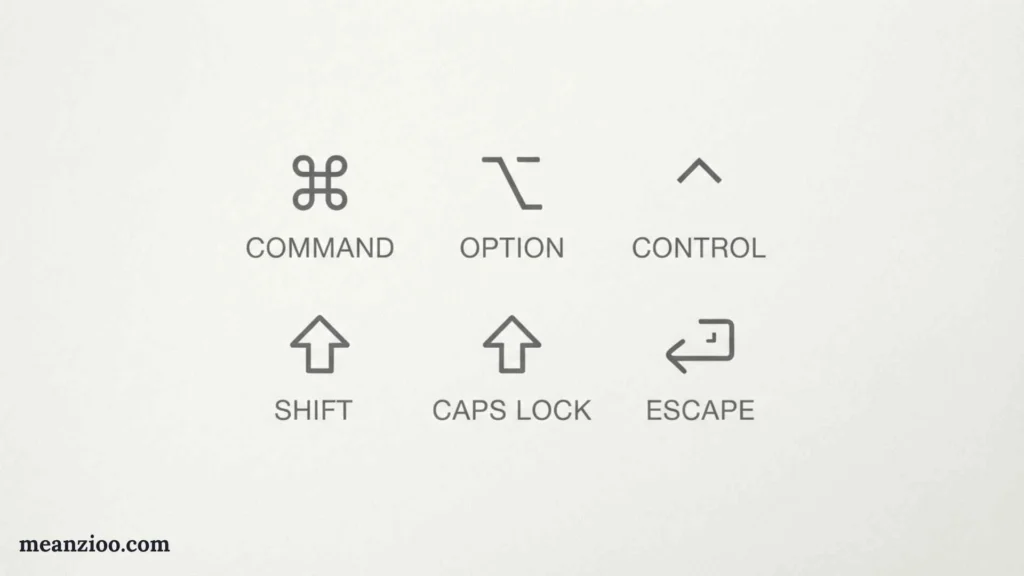
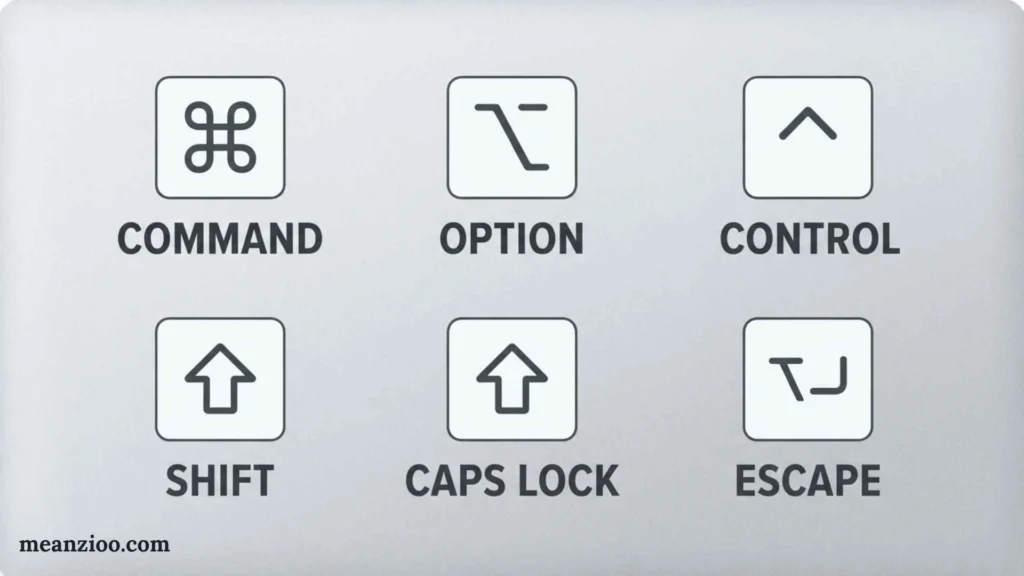
Mac keyboard symbols are visual representations of keys or characters used throughout macOS.
The most important symbols are the modifier keys. Modifier keys are pressed together with another key to perform an action.
For example:
⌘ + C
means press Command and C together to copy selected content.
Similarly:
⌘ + V
means press Command and V to paste.
Once you learn the modifier symbols, Mac keyboard shortcuts become much easier to understand.
Command Symbol ⌘
The ⌘ symbol represents the Command key.
Command is the most important modifier key for many everyday Mac shortcuts.
Common examples include:
- ⌘ + C — Copy
- ⌘ + V — Paste
- ⌘ + X — Cut
- ⌘ + Z — Undo
- ⌘ + A — Select all
- ⌘ + S — Save
- ⌘ + F — Find
- ⌘ + P — Print
- ⌘ + W — Close a window
- ⌘ + Q — Quit an application
If you have moved from Windows to Mac, the Command key is one of the first symbols worth learning.
Option Symbol ⌥
The ⌥ symbol represents the Option key.
Option is used for alternate commands, special characters, and many keyboard shortcuts.
It can also change the behavior of another key.
For example, holding Option while pressing another key may produce a character that is not printed on the keyboard.
Option is particularly useful when typing:
- Currency symbols
- Mathematical symbols
- Punctuation
- Accented characters
- Other special characters
The exact characters available depend on your keyboard layout.
Shift Symbol ⇧
The ⇧ symbol represents the Shift key.
Shift is commonly used to:
- Type uppercase letters
- Type alternate characters
- Select text
- Modify keyboard shortcuts
For example:
⇧ + A = A
Shift can also be combined with Command or Option.
Examples include:
- ⇧ + ⌘ + 3 — Screenshot of the screen
- ⇧ + ⌘ + 4 — Select an area for a screenshot
- ⇧ + ⌘ + 5 — Open screenshot and screen-recording controls on supported macOS versions
Control Symbol ⌃
The ⌃ symbol represents the Control key.
Control is different from Command, even though Windows users may initially confuse the two.
Control is used in several macOS shortcuts and text-navigation commands.
Examples include:
- ⌃ + A
- ⌃ + E
- ⌃ + F
- ⌃ + B
Control is also commonly used with a mouse or trackpad for contextual actions.
For example, Control-click can provide a secondary-click function in certain configurations.
Function Key Symbol fn
The fn key represents the Function key.
On many Mac keyboards, the top row contains keys that can perform system functions such as:
- Screen brightness
- Keyboard brightness
- Mission Control
- Media playback
- Volume
- Mute
The exact functions depend on the Mac and keyboard.
Holding fn can also provide an alternate function for another key.
Globe Symbol 🌐
Many newer Apple keyboards use a Globe key instead of a key labeled only “fn.”
The Globe key can be used for functions such as:
- Switching input sources
- Opening emoji and symbols
- Accessing certain keyboard functions
- Activating dictation, depending on settings
Its behavior can be customized through macOS keyboard settings.
The Globe symbol does not mean that the Mac is connected to the internet. It is primarily a keyboard/input-related control.
Escape Symbol ⎋
The ⎋ symbol represents the Escape key.
Escape is commonly used to:
- Cancel an operation
- Close a menu
- Exit certain modes
- Dismiss a dialog
- Stop an action in some applications
For example, if a menu opens and you decide not to select anything, pressing Escape can often close it.
Return Symbol ↩
The ↩ symbol represents the Return key.
Return is commonly used to:
- Start a new paragraph
- Confirm an action
- Submit information
- Select an item
- Move to a new line
Its exact behavior depends on the application.
Delete Symbol ⌫
The ⌫ symbol represents the Delete key.
On a Mac, the standard Delete key normally removes the character to the left of the cursor.
This can be confusing if you are moving from Windows, where the equivalent key is commonly called Backspace.
How do you forward-delete on Mac?
On many Mac keyboards:
fn + Delete
performs forward deletion, removing the character to the right of the cursor.
Some applications may provide additional deletion shortcuts.
Tab Symbol ⇥
The ⇥ symbol represents the Tab key.
Tab is commonly used to:
- Move between form fields
- Move through interface controls
- Indent text
- Navigate spreadsheets
- Insert a tab character in supported applications
For example, while filling out an online form, pressing Tab usually moves the cursor to the next field.
Caps Lock Symbol ⇪
The ⇪ symbol represents Caps Lock.
Caps Lock allows you to type uppercase letters without holding Shift.
For example:
CAPS LOCK ON → HELLO
Press Caps Lock again to return to normal lowercase typing.
Some Apple keyboards use an indicator light to show that Caps Lock is active.
Arrow Symbols
Mac keyboards have four primary arrow keys:
- ↑ Up
- ↓ Down
- ← Left
- → Right
Arrow keys can be used to:
- Move the text cursor
- Navigate menus
- Move through documents
- Select items
- Scroll in certain applications
- Play games
- Navigate spreadsheets
They are also frequently used with modifier keys.
For example, Shift + Arrow can select text in many applications.
Space Bar Symbol ␣
The Space bar inserts a blank space between words.
In technical documentation, the Space bar may be represented by:
␣
Most everyday Mac instructions simply write Space instead.
For example:
⌘ + Space
opens Spotlight on supported macOS versions.
Complete Mac Keyboard Function Symbols
The top row of an Apple keyboard may contain icons for system functions.
Depending on the Mac model, you may see symbols for:
- Screen brightness
- Keyboard brightness
- Mission Control
- Spotlight
- Dictation
- Do Not Disturb or Focus-related functions
- Previous track
- Play/pause
- Next track
- Mute
- Volume down
- Volume up
Not every Mac keyboard has the same top-row symbols.
MacBook models, Apple Magic Keyboard versions, and third-party keyboards can have different layouts.
MacBook Keyboard Symbols
MacBook keyboards are designed to combine standard typing keys with system controls.
Depending on the model, the top row may include:
- Brightness controls
- Mission Control
- Spotlight
- Dictation
- Media controls
- Volume controls
- Touch ID
- Other system-specific controls
Newer MacBooks may use a Touch ID/power button in place of a traditional power key.
The exact arrangement varies by MacBook generation.
Apple Magic Keyboard Symbols
The Apple Magic Keyboard is available in several versions, and its layout can differ from the built-in keyboard of a MacBook.
Some versions include:
- Command
- Option
- Control
- Function/Globe
- Arrow keys
- Touch ID on supported models
- Media controls
If you use a Magic Keyboard with an iPad, Mac, or another Apple device, some keys can behave differently depending on the connected device.
Mac Shortcut Symbols Explained
When you see a Mac shortcut written as:
⌘⇧4
it means:
Command + Shift + 4
Multiple symbols placed together mean you should hold the modifier keys and press the final key.
For example:
⌥⌘Esc
means:
Option + Command + Escape
This combination opens the Force Quit window.
Another example is:
⌃⌘Q
which is commonly used to lock the Mac screen.
Understanding this notation makes Apple’s shortcut instructions much easier to follow.
Common Mac Keyboard Shortcuts
Copy
⌘ + C
Copies selected text, images, files, or other supported content.
Paste
⌘ + V
Pastes copied or cut content.
Cut
⌘ + X
Cuts selected content.
Undo
⌘ + Z
Undoes the most recent action in many applications.
Redo
⇧ + ⌘ + Z
Commonly redoes an action that was previously undone.
Select All
⌘ + A
Selects all applicable content.
Save
⌘ + S
Saves the current document or changes.
Find
⌘ + F
Opens a Find function in many applications.
⌘ + P
Opens the print dialog.
Close
⌘ + W
Closes the current window or tab in many applications.
Quit
⌘ + Q
Quits the current application.
Mac Keyboard Symbols for Screenshots
macOS provides several useful screenshot shortcuts.
Full-screen screenshot
⇧ + ⌘ + 3
Captures the entire screen on supported versions of macOS.
Selected-area screenshot
⇧ + ⌘ + 4
Lets you select an area of the screen to capture.
Screenshot controls
⇧ + ⌘ + 5
Opens screenshot and screen-recording controls on supported macOS versions.
These shortcuts are useful for creating tutorials, saving information, reporting technical problems, or sharing something visible on your screen.
Mac Keyboard Symbols for Switching Apps
To switch between open applications, use:
⌘ + Tab
Hold Command and press Tab to move through open applications.
This is one of the most useful Mac shortcuts for multitasking.
You can also use additional modifier keys with Tab for different navigation behavior.
Mac Keyboard Symbols for Browser Shortcuts
Many Mac browsers support shortcuts such as:
- ⌘ + T — Open a new tab
- ⌘ + W — Close the current tab
- ⌘ + L — Select the address bar
- ⌘ + R — Reload the page
- ⌘ + F — Find text
- ⇧ + ⌘ + T — Reopen a recently closed tab in many browsers
Exact shortcuts can vary between browsers and applications.
Mac Keyboard Symbols for Text Editing
Mac keyboard symbols are especially useful when working with long documents.
Common text-navigation shortcuts include:
- Option + Left Arrow — Move by word in many text fields
- Option + Right Arrow — Move forward by word in many text fields
- Shift + Arrow — Select text
- ⌘ + A — Select all
- ⌘ + Left Arrow — Move toward the beginning in many text contexts
- ⌘ + Right Arrow — Move toward the end in many text contexts
The exact behavior can vary by application and text field.
How to Type Special Symbols on Mac
Not every symbol has a dedicated key.
macOS includes Character Viewer, which provides access to thousands of characters and symbols.
You can use it to find:
- Arrows
- Currency symbols
- Mathematical characters
- Emoji
- Copyright symbols
- Trademark symbols
- Greek letters
- Accented characters
- Technical symbols
- Punctuation
You can generally access Character Viewer through the macOS input menu or the Emoji & Symbols command available in supported applications.
How to Type Common Special Characters
Copyright Symbol
©
Useful for copyright notices and website footers.
Registered Trademark
®
Used for registered trademarks.
Trademark
™
Used for trademarks.
Degree Symbol
°
Useful for temperatures and angles.
Bullet
•
Useful for lists and formatting.
Ellipsis
…
Used to represent omitted text or a trailing thought.
Plus or Minus
±
Common in mathematics and technical writing.
Infinity
∞
Used in mathematics and other contexts.
Square Root
√
Used for mathematical expressions.
Euro
€
Currency symbol for the euro.
Pound
£
Currency symbol used for the British pound and certain other currencies.
Yen
¥
Currency symbol commonly associated with the Japanese yen and Chinese yuan.
If you do not know the keyboard shortcut for a symbol, Character Viewer is usually the easiest solution.
How to Type @, #, $, %, &, and Other Symbols
Characters such as:
@ # $ % & * _ + =
are normally available directly from the keyboard using standard keys and, depending on the keyboard layout, the Shift or Option modifier.
For example, the exact key combination for @ can differ between US, UK, and other layouts.
If a familiar shortcut does not produce the expected character, check your active keyboard layout.
Option Key Hidden Symbols
One of the most useful features for discovering Mac symbols is the Option key.
Some keys produce an alternate character when Option is held.
For example, depending on your keyboard layout, Option combinations can provide:
- Currency characters
- Mathematical symbols
- Accented characters
- Punctuation
- Technical symbols
The exact result depends on your input source.
How to See Every Symbol on Your Mac Keyboard
If you want to discover what your keyboard can type, use Keyboard Viewer.
Keyboard Viewer displays an on-screen version of your current keyboard.
You can then hold:
- Shift
- Option
- Shift + Option
and see how the available characters change.
This is particularly useful when you know a symbol exists but cannot remember the shortcut.
Mac Keyboard Layout Differences
One reason Mac symbols sometimes seem inconsistent is that keyboards are not identical around the world.
Common layouts include:
- US English
- British English
- German
- French
- Spanish
- Italian
- Japanese
- Other regional layouts
A key may produce a different symbol depending on the selected input source.
For example, the location of characters such as *@, “, £, #, and * can differ between layouts.
US vs UK Mac Keyboard Symbols
US and UK keyboards have several physical and character-layout differences.
For example, symbols involving:
- @
- “
- £
- \
may be located differently.
Therefore, a keyboard shortcut found in a US Mac tutorial may not produce the same character on a UK keyboard.
This does not necessarily mean your keyboard is faulty.
How to Check Your Mac Keyboard Layout
If your keyboard produces unexpected characters, check the selected input source in macOS.
The keyboard settings allow you to manage input sources and add or remove layouts.
You can also use Keyboard Viewer to confirm which characters macOS expects from your physical keyboard.
How to Customize Mac Modifier Keys
macOS allows users to change the behavior of certain modifier keys.
This can be useful if:
- You use an external keyboard.
- You prefer a Windows-style keyboard.
- You want Control, Option, or Command to behave differently.
- A third-party keyboard has an unusual layout.
Modifier-key settings can be accessed through the Mac’s keyboard settings.
The available customization options can vary depending on the connected keyboard.
How to Type Emojis and Symbols
Mac includes a built-in emoji and symbol interface.
You can use it to search for:
- 😀 Emojis
- ❤️ Hearts
- ✓ Check marks
- → Arrows
- © Copyright
- ™ Trademark
- Mathematical characters
- Currency symbols
Search is especially useful because you do not need to memorize a shortcut for every symbol.
Mac Symbols for Writing and Typography
Writers often need symbols that are not printed on the keyboard.
Common examples include:
- — Em dash
- – En dash
- … Ellipsis
- “ ” Curly quotation marks
- ‘ ’ Curly apostrophes
- • Bullet
- © Copyright
- ® Registered trademark
- ™ Trademark
These characters can be found through Character Viewer and can make documents look more polished.
Mac Keyboard Symbols for Mathematics
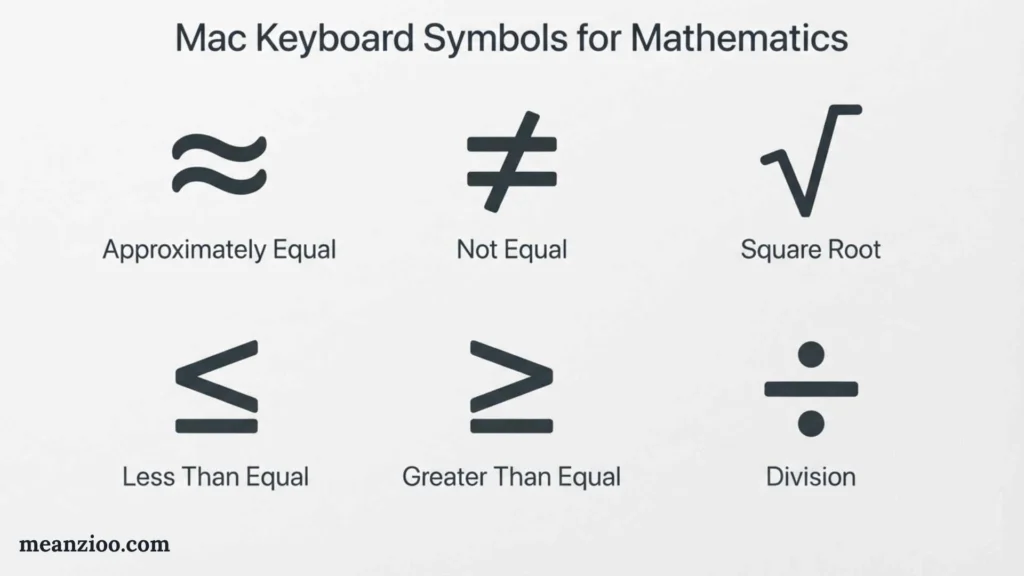
Mac users can enter many mathematical characters, including:
- ± Plus/minus
- × Multiplication
- ÷ Division
- ≠ Not equal
- ≤ Less than or equal
- ≥ Greater than or equal
- ≈ Approximately equal
- ∞ Infinity
- √ Square root
- π Pi
- ∑ Summation
Character Viewer is useful when you need a mathematical symbol that is not available through a simple keyboard shortcut.
Mac Keyboard Symbols vs Windows Keyboard Symbols
Mac and Windows use different modifier-key conventions.
| Mac | Common Windows counterpart |
| Command ⌘ | Ctrl |
| Option ⌥ | Alt |
| Control ⌃ | Ctrl |
| Return ↩ | Enter |
| Delete ⌫ | Backspace |
| ⌘ + C | Ctrl + C |
| ⌘ + V | Ctrl + V |
| ⌘ + X | Ctrl + X |
| ⌘ + Z | Ctrl + Z |
| ⌘ + A | Ctrl + A |
This is a general comparison. Applications can use different shortcuts, so the two platforms are not always identical.
Common Mac Keyboard Symbol Problems
My @ symbol is in the wrong place
Check your keyboard layout and input source.
A US and UK keyboard, for example, can place the @ symbol differently.
My Mac types the wrong character
Your selected input source may not match the physical keyboard.
Use Keyboard Viewer to check the active layout.
My shortcut does not work
Check:
- Which application you are using.
- Whether the application has changed the shortcut.
- Your keyboard layout.
- Whether you are using Command or Control.
- Whether the shortcut requires Shift or Option.
I cannot find a special symbol
Open Character Viewer and search for the symbol by name.
My Delete key does not delete forward
The standard Mac Delete key normally deletes backward. Try fn + Delete for forward deletion on supported keyboards.
Frequently Asked Questions
What are the main symbols on a Mac keyboard?
The most important ones are ⌘ Command, ⌥ Option, ⇧ Shift, ⌃ Control, ⎋ Escape, ↩ Return, ⌫ Delete, ⇥ Tab, and fn/Globe.
What does ⌘ mean on Mac?
It means Command, the primary modifier key used for many Mac shortcuts.
What does ⌥ mean on Mac?
It means Option and is commonly used for alternate commands and special characters.
What does ⇧ mean?
It represents Shift, which is used for uppercase letters, alternate characters, and shortcut combinations.
What does ⌃ mean?
It represents the Control key.
What does ⎋ mean?
It represents Escape.
What does ⌫ mean?
It represents the Mac Delete key, which normally deletes the character before the cursor.
What does the Globe key mean?
The Globe key can control input sources, emoji and symbols, dictation, or other keyboard functions depending on your settings and Mac.
How do I find symbols that are not on my keyboard?
Use Character Viewer to search for and insert special characters.
How can I see what my Option key can type?
Use Keyboard Viewer and hold Option. The on-screen keyboard will show the alternate characters available for your current layout.
Why does my Mac keyboard have different symbols from an online tutorial?
The difference may be caused by your keyboard model, country, language, input source, or macOS settings.
Can I change what the Command or Option key does?
macOS provides modifier-key settings that allow supported modifier keys to be reassigned.
How do I type an Apple logo?
The Apple logo character can be inserted using available character/input methods, although its availability through keyboard shortcuts depends on the keyboard layout and system configuration.
Final Thoughts
Understanding Mac keyboard symbols makes it much easier to follow shortcuts, type special characters, and use macOS efficiently. The most important symbols to learn first are ⌘ Command, ⌥ Option, ⇧ Shift, ⌃ Control, ⎋ Escape, ↩ Return, ⌫ Delete, and ⇥ Tab.
For less common symbols, macOS provides Character Viewer and Keyboard Viewer. These tools are especially helpful for finding mathematical characters, currency symbols, punctuation, emoji, accented letters, and alternate characters available through Option and Shift.
Remember that Mac keyboard symbols can vary between MacBook models, Apple Magic Keyboards, third-party keyboards, countries, and input sources. If a shortcut or symbol does not behave as expected, checking your keyboard layout and the specific application’s shortcuts is a good place to start.

I’m Ryan Mitchell, and I write about modern English, trending slang, and online expressions. I enjoy explaining the meanings, origins, and real-life usage of popular words in a simple way. I believe learning slang is an important step toward understanding today’s English-speaking culture. Through my work, I aim to help readers speak more naturally and stay updated with the latest language trends.
 Charlotte Hayes