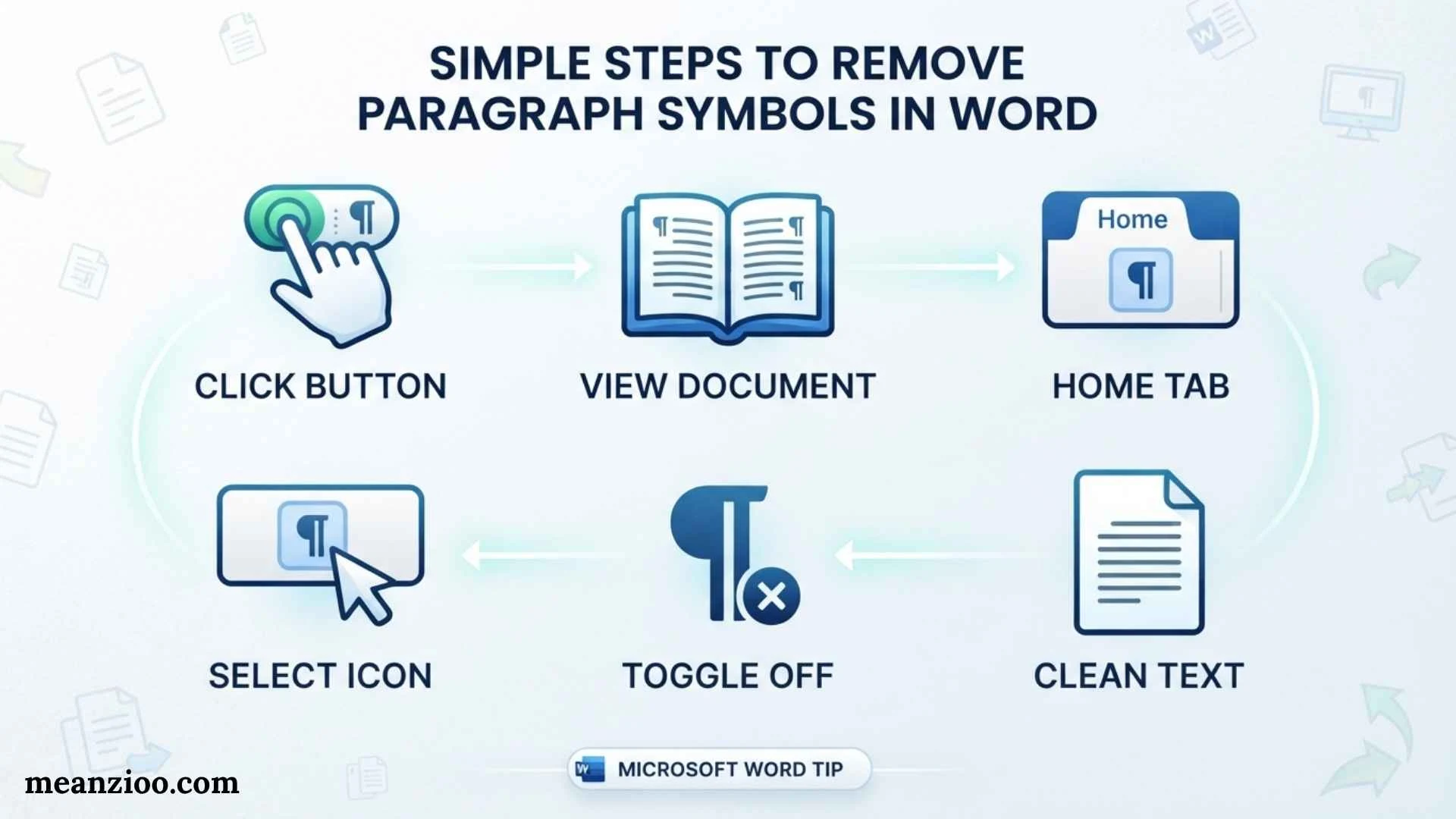
If you see ¶ symbols throughout your Microsoft Word document, your formatting marks are turned on. These symbols are called paragraph marks or nonprinting characters, and they help show where paragraphs, spaces, tabs, and other formatting elements are placed. They do not normally appear when you print the document.
The easiest way to remove paragraph symbols in Word is to turn off the Show/Hide ¶ button on the Home tab. You can also use a keyboard shortcut, change Word’s display settings, or remove paragraph marks from the document if they are actually part of the text you want to edit.
What Are the Paragraph Symbols in Word?

The ¶ symbol in Word represents the end of a paragraph. Microsoft Word uses it as a formatting mark to show where one paragraph ends and another begins.
When formatting marks are visible, you may also see:
- ¶ for paragraph breaks
- · for spaces
- → for tab characters
- Dots or other marks for hidden formatting
- Manual line-break indicators
- Page-break or section-break indicators
These marks are normally nonprinting characters, meaning they help you edit and format a document but do not appear on the printed page.
If your Word document suddenly displays ¶ symbols after you accidentally clicked something, you usually do not need to delete anything from the document. You only need to turn off the formatting-mark display.
How to Remove Paragraph Symbols in Word
The quickest method is to use the Show/Hide ¶ button.
Step 1: Open Your Word Document
Open the Microsoft Word document where you can see the paragraph symbols.
Step 2: Go to the Home Tab
At the top of Word, select Home.
Step 3: Find the Paragraph Section
Look for the Paragraph group on the ribbon.
Step 4: Click the ¶ Button
Select the ¶ Show/Hide button.
The paragraph symbols should disappear immediately.
This does not delete your paragraphs. It only hides the formatting marks from view.
How to Remove Paragraph Symbols Using a Keyboard Shortcut
If you prefer keyboard shortcuts, you can toggle formatting marks using:
Ctrl + Shift + 8
Press the three keys together.
If the paragraph symbols are currently visible, the shortcut normally hides them. Pressing the same shortcut again will show them.
On some keyboards or Word configurations, the exact shortcut behavior can vary, but Ctrl + Shift + 8 is the standard Windows Word shortcut for showing or hiding paragraph marks.
How to Remove ¶ Symbols Permanently From Word’s Display
If paragraph symbols keep appearing whenever you open Word, you may have enabled formatting marks through Word’s settings.
You can change which nonprinting characters Word displays.
On Windows
- Open Microsoft Word.
- Select File.
- Choose Options.
- Select Display.
- Look for Always show these formatting marks on the screen.
- Uncheck Paragraph marks.
- You can also uncheck other formatting marks if you do not want them displayed.
- Select OK.
This changes Word’s display settings so paragraph marks are no longer automatically shown.
How to Hide All Formatting Marks in Word
Sometimes you do not just see ¶ symbols. You may also see dots between words, arrows for tabs, and other formatting indicators.
If you want to hide all of them at once, click the ¶ Show/Hide button on the Home tab.
This is useful when a document looks cluttered with symbols and you want to return to a normal editing view.
However, remember that hiding formatting marks does not remove them. The paragraph breaks, spaces, and tabs remain part of the document.
How to Remove Paragraph Marks From Text
There is an important difference between hiding paragraph symbols and deleting paragraph marks.
If you want to actually remove paragraph breaks from your document, you need to edit the text itself.
For example, imagine your document contains:
This is the first line.
This is the second line.
Each line may be separated by a paragraph mark.
If you want them to become one paragraph, you need to remove the paragraph break.
Using Find and Replace
Word’s Find and Replace feature can help when a document contains many unwanted paragraph breaks.
- Press Ctrl + H.
- Select the Find what box.
- Enter ^p to search for paragraph marks.
- Enter the replacement you want.
- Select Replace All if you are sure you want to change every matching paragraph mark.
Be careful with Replace All. Paragraph marks define the structure of your document, so removing all of them can turn a properly formatted document into one large block of text.
How to Remove Extra Paragraph Marks
If your problem is not that the ¶ symbols are visible but that your document contains too many blank paragraphs, Find and Replace can be useful.
For example, you may have several empty paragraphs between sections.
You can search for repeated paragraph marks and replace them with fewer paragraph marks.
However, review the document afterward because paragraph marks can be used intentionally for spacing, headings, lists, tables, and other formatting.
How to Remove Paragraph Symbols Without Deleting Text
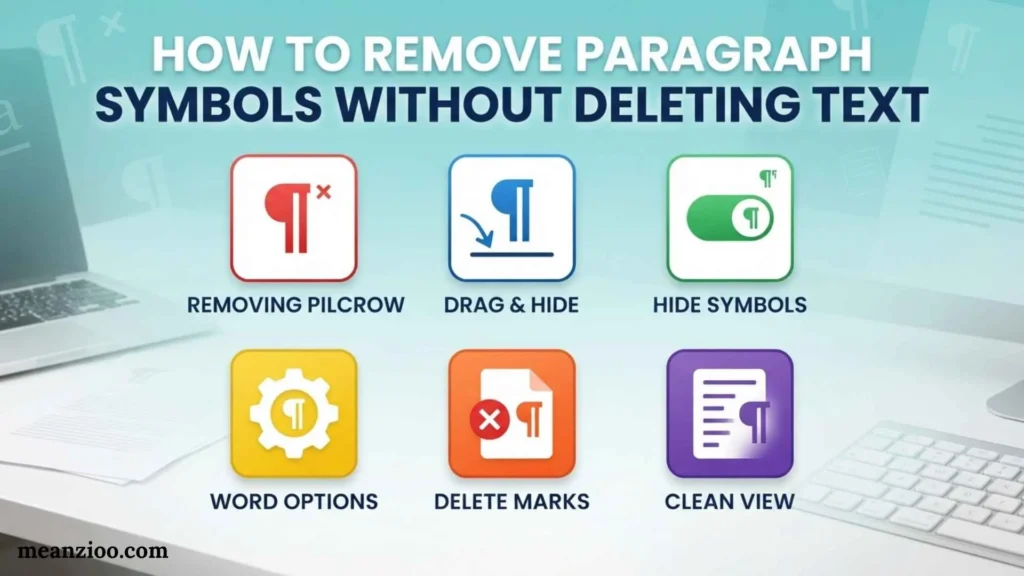
If you only want the symbols to disappear from your screen, do not press Backspace or Delete.
Instead:
Home → ¶ Show/Hide
or use:
Ctrl + Shift + 8
This is the safest solution because it changes only the visibility of formatting marks.
Your:
- Text
- Paragraphs
- Headings
- Spacing
- Formatting
- Page layout
remain unchanged.
Why Do Paragraph Symbols Suddenly Appear in Word?
There are several reasons you may suddenly see paragraph symbols.
You Clicked the Show/Hide Button
The most common reason is accidentally clicking ¶ in the Paragraph group.
A Keyboard Shortcut Was Pressed
You may have accidentally pressed Ctrl + Shift + 8, which toggles paragraph marks.
Formatting Marks Are Enabled in Word Options
Word can be configured to always display certain formatting marks.
You Received a Document With Different Settings
Opening a document or using a different Word environment can sometimes make formatting marks appear differently.
Seeing these symbols does not necessarily mean that your document is damaged.
Do Paragraph Symbols Print?
Normally, no.
The ¶ symbol is a nonprinting formatting mark. It is displayed to help you work with document structure but is not normally printed on paper or included in a standard PDF output.
This is why a document can look full of ¶ symbols on your screen while the printed version looks completely normal.
If you are preparing a document for printing or sharing, you generally do not need to delete these marks. Simply hide them.
How to Remove Paragraph Symbols in Word Online
Word for the web has fewer formatting controls than the desktop version, but you can generally use the Show/Hide ¶ control when it is available in the editing interface.
If you cannot find the control, check the Home tab and look in the paragraph formatting controls.
The interface can change as Microsoft updates Word, so the exact location may differ between versions.
How to Remove Paragraph Symbols on Mac
On Word for Mac, the basic idea is the same.
Look for the ¶ Show/Hide formatting-mark button in the Word ribbon.
You can also check Word’s preferences if formatting marks are configured to remain visible.
The exact menu names can differ slightly between Microsoft Word versions, so if you do not see the setting, use Word’s search or help feature to find formatting marks or paragraph marks.
Paragraph Marks vs. Line Breaks
Paragraph marks and line breaks are not exactly the same.
A paragraph mark indicates the end of a paragraph and is represented by ¶ when formatting marks are displayed.
A manual line break moves text to a new line without necessarily creating a new paragraph.
This distinction matters when cleaning up copied text.
For example, text copied from websites, PDFs, Google Docs, or other applications may contain unexpected paragraph breaks or manual line breaks. If you simply remove every visible ¶ symbol, you may accidentally change the structure of the document.
How to Remove Paragraph Symbols From Copied Text
If you copied text from another application and it contains unwanted paragraph breaks, first turn on formatting marks.
This lets you see where Word believes the paragraphs and line breaks are located.
Then decide what needs to change:
- If you only dislike seeing the ¶ symbols, hide formatting marks.
- If the document contains unnecessary paragraph breaks, use Find and Replace.
- If copied text has inconsistent spacing, clean the formatting before making large replacements.
- If headings and paragraphs are separated correctly, avoid removing their paragraph marks.
This approach prevents accidental formatting problems.
What If the ¶ Symbol Appears at the End of Every Line?
If a ¶ symbol appears at the end of every line, Word may be treating each line as a separate paragraph.
This can happen when text has been copied from:
- A PDF
- A website
- An OCR document
- A scanned document
- Another word processor
- A poorly formatted text file
Turn on formatting marks and inspect the document.
If every line ends with a paragraph mark when it should be part of the same paragraph, you may need to use Find and Replace to correct the paragraph structure.
Do not automatically remove all paragraph marks, though. First determine whether each mark represents an intentional paragraph.
How to Remove Extra Spaces and Tabs Along With Paragraph Marks
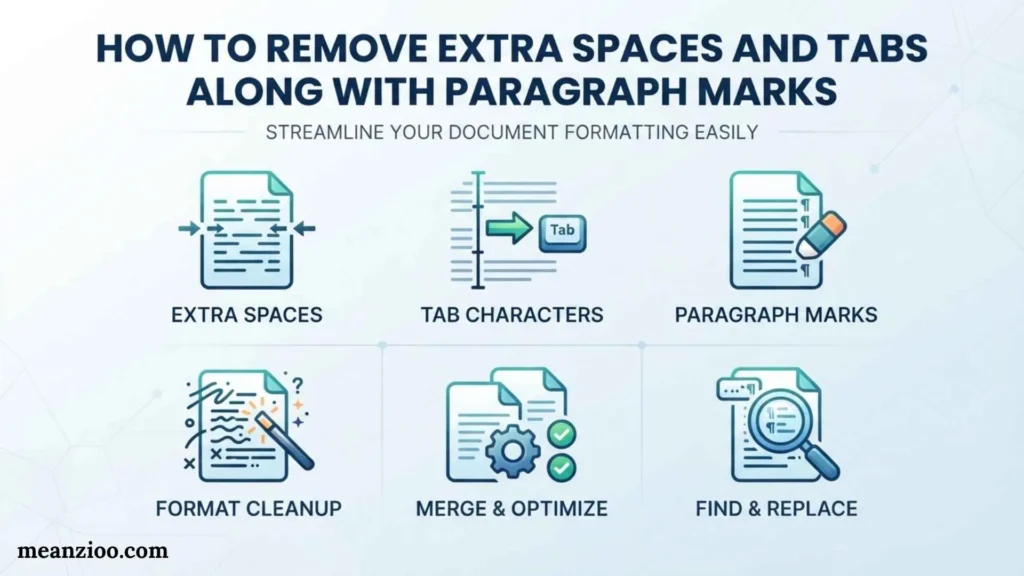
When cleaning a Word document, paragraph marks may appear alongside other formatting symbols.
For example:
¶ = paragraph mark
· = space
→ = tab
These symbols make it easier to identify formatting problems.
If your goal is to clean up copied content, fix one problem at a time rather than deleting every formatting character at once.
This is particularly important for documents containing tables, headings, numbered lists, or carefully formatted sections.
Common Problems When Removing Paragraph Symbols
Deleting the Paragraph Marks Instead of Hiding Them
If you press Delete or Backspace, you may merge paragraphs together.
If you simply want the symbols gone from your screen, use Show/Hide instead.
Using Replace All Without Checking the Document
Replacing every ^p can dramatically change your document structure.
Always consider whether the paragraph breaks are intentional.
Confusing Paragraph Marks With Spaces
A paragraph mark is different from a space. If you see small dots between words, those are usually space markers, not paragraph symbols.
Removing Paragraph Marks From Headings
Headings normally require their own paragraph structure. Removing those marks can merge headings with body text.
Assuming Formatting Marks Are Printed
They normally are not. You generally only see them while editing the document.
Frequently Asked Questions
How do I get rid of the paragraph symbol in Word?
Click the ¶ Show/Hide button on the Home tab. You can also press Ctrl + Shift + 8 on Windows to toggle paragraph marks.
Why is there a ¶ symbol after every paragraph in Word?
The ¶ symbol represents the end of a paragraph. It appears because Word’s formatting-mark display is turned on.
How do I remove the ¶ symbol without deleting my text?
Use the Show/Hide ¶ button. This hides the symbols without changing or deleting your document’s text.
How do I permanently stop paragraph marks from showing?
Go to File → Options → Display in Word for Windows and adjust the formatting-mark settings, including the Paragraph marks option.
Do paragraph symbols show when I print a Word document?
Normally, no. Paragraph marks are nonprinting formatting characters and are generally visible only while editing.
What is the shortcut for paragraph marks in Word?
On Windows, Ctrl + Shift + 8 toggles the display of paragraph marks.
How do I delete unwanted paragraph breaks?
Use Find and Replace with ^p when you need to locate paragraph marks. Be careful with Replace All because paragraph marks control the structure of your document.
Why do I see dots between words in Word?
The dots usually represent spaces when formatting marks are enabled. They are another type of nonprinting character.
Final Thoughts
If you are wondering how to remove paragraph symbols in Word, the solution is usually very simple: click the ¶ Show/Hide button on the Home tab or press Ctrl + Shift + 8 on Windows.
Remember that hiding paragraph symbols is different from deleting paragraph marks. If you only want a cleaner screen, hide the formatting marks. If your document actually contains unwanted paragraph breaks, use Find and Replace carefully so you do not accidentally merge paragraphs, headings, or lists.
Once you understand what the ¶ symbol represents, it becomes a useful formatting tool rather than an annoying mark on your screen.
:::

Hi, I’m Charlotte Hayes. I love writing about the newest English slang, pop culture phrases, and digital communication. I spend my time exploring how language evolves across social media, gaming, and everyday conversations. I enjoy sharing easy-to-understand guides that help learners keep up with modern English. My goal is to make every article useful, accurate, and enjoyable for readers around the world.
Books:
- Everyday Slang Dictionary
- Fluent Through Informal English
 Ryan Mitchell