If you are looking for Noto Sans Symbols, you may want more than a basic font description. You may need to know which symbols it supports, where to download it, how it differs from Noto Sans Symbols 2, how to install it, and how to use it in applications or websites.
Noto Sans Symbols is part of the Noto font family and is specifically designed for symbol characters. The current Noto documentation lists multiple weights for Noto Sans Symbols, with 1,224 glyphs covering 840 characters across 10 Unicode blocks.
Noto Sans Symbols 2 provides substantially broader coverage. It contains 2,674 glyphs and supports 2,655 characters across 26 Unicode blocks.
This guide explains both fonts, their character coverage, installation options, Unicode support, website implementation, licensing, and common troubleshooting issues.
What Is Noto Sans Symbols?
Noto Sans Symbols is a sans-serif font designed primarily for symbols rather than ordinary text. It belongs to Google’s broader Noto font project, which aims to provide consistent typography across languages and character systems.
The font is useful when a normal typeface does not contain the particular symbol you need. Instead of showing a missing-glyph box, the system can use Noto Sans Symbols as a fallback font when the appropriate character is available.
The official Noto documentation describes Noto Sans Symbols as an unmodulated, or sans-serif, design for text in the Symbols script.
What Is Noto Sans Symbols Used For?
Noto Sans Symbols can be useful wherever text contains specialized Unicode symbols.
Common applications include:
- Arrows
- Technical symbols
- Mathematical symbols
- Dingbats
- Miscellaneous symbols
- Pictographic characters
- Enclosed alphanumeric characters
- Alchemical symbols
- Website navigation
- Technical documentation
- Educational material
- Digital interfaces
- Unicode testing
- Documents containing special characters
It is especially useful as a fallback font. Your primary typeface can handle normal letters and numbers while Noto Sans Symbols supplies characters that the primary font does not contain.
Noto Sans Symbols Character and Glyph Coverage
The distinction between glyphs and characters is important.
A character is a Unicode code point, while a glyph is the visual representation of that character. A font can contain more glyphs than the number of characters it supports because OpenType features and alternate representations can affect the glyph count.
According to the current Noto documentation, Noto Sans Symbols contains:
- 1,224 glyphs
- 840 supported characters
- 10 Unicode blocks
- Multiple font weights
Its documented Unicode coverage includes the following blocks:
- Enclosed Alphanumeric Supplement
- Miscellaneous Symbols
- Alchemical Symbols
- Miscellaneous Technical
- Enclosed Alphanumerics
- Basic Latin
- Arrows
- Combining Diacritical Marks for Symbols
- Dingbats
- Miscellaneous Symbols and Pictographs
This makes the original Noto Sans Symbols useful for a focused collection of symbols, but it is not intended to cover every Unicode symbol.
What Is Noto Sans Symbols 2?
Noto Sans Symbols 2 is a related font with much broader symbol coverage.
The current official Noto specimen lists 2,674 glyphs and 2,655 supported characters across 26 Unicode blocks.
Its coverage includes areas such as:
- Miscellaneous Symbols and Pictographs
- Braille Patterns
- Miscellaneous Symbols and Arrows
- Symbols for Legacy Computing
- Supplemental Arrows-C
- Dingbats
- Miscellaneous Symbols
- Geometric Shapes Extended
- Domino Tiles
- Chess Symbols
- Geometric Shapes
- Playing Cards
- Yijing Hexagram Symbols
- Ornamental Dingbats
- Transport and Map Symbols
- Mahjong Tiles
- Miscellaneous Technical
- Arrows
- Mathematical Operators
Because of this much wider coverage, Noto Sans Symbols 2 is often the more practical choice when you need a large collection of Unicode symbols.
Noto Sans Symbols vs. Noto Sans Symbols 2
The biggest difference is character coverage.
| Feature | Noto Sans Symbols | Noto Sans Symbols 2 |
| Symbol-focused font | Yes | Yes |
| Glyphs | 1,224 | 2,674 |
| Supported characters | 840 | 2,655 |
| Unicode blocks | 10 | 26 |
| Multiple weights | Yes | Primarily Regular |
| Broad symbol coverage | Moderate | Extensive |
| Arrows | Yes | Yes |
| Mathematical symbols | Selected coverage | Broader coverage |
| Dingbats | Yes | Yes |
| Chess symbols | Limited/not primary coverage | Yes |
| Playing cards | Limited/not primary coverage | Yes |
| Legacy computing symbols | Limited | Yes |
The figures above come from the current Noto documentation.
Which Noto Sans Symbols Font Should You Choose?
Choose Noto Sans Symbols when:
- You need several font weights.
- Your symbol requirements are relatively focused.
- You want a symbol font that fits a specific visual design.
Choose Noto Sans Symbols 2 when:
- You need extensive Unicode coverage.
- Your website uses arrows or dingbats.
- You work with technical or mathematical symbols.
- You need chess, playing-card, transport, map, or other specialized symbols.
- Your primary font is missing many Unicode characters.
The official Noto website specifically recommends Noto Sans Symbols 2 when website text uses arrows or dingbats.
Noto Sans Symbols Character Examples
Here are some common examples of symbols that can be useful when testing symbol fonts:
Arrows:
→ ← ↑ ↓ ↔ ↕ ⇒ ⇐ ⇑ ⇓
Mathematical symbols:
± × ÷ ≠ ≤ ≥ ∞ ∑ √
Geometric shapes:
■ □ ● ○ ▲ △ ◆ ◇
Card and game symbols:
♠ ♥ ♦ ♣ ♔ ♕ ♖
Technical symbols:
⌘ ⌥ ⌫ ⌫ ⚙ ⚠
The exact appearance depends on the font, operating system, application, browser, and fallback behavior.
For a complete character inventory, it is better to consult the Noto specimen and Unicode data rather than assume that every possible symbol belongs to the font. Unicode organizes characters into defined blocks, but a Unicode block does not automatically mean that every character in that block is supported by a particular font.
Also Check This Post:Commercial Auto Symbols: Complete Guide to Symbols 1–9 and 19
Noto Sans Symbols Unicode Ranges
Unicode ranges identify groups of encoded characters. Noto Sans Symbols covers selected ranges rather than the entire Unicode Standard.
For example, its documented coverage includes the Arrows, Dingbats, Miscellaneous Symbols, Miscellaneous Technical, and Miscellaneous Symbols and Pictographs blocks.
Noto Sans Symbols 2 extends this considerably, adding coverage from blocks such as Chess Symbols, Playing Cards, Transport and Map Symbols, Mahjong Tiles, Braille Patterns, and Mathematical Operators.
If you are looking for a particular Unicode character, search for its Unicode code point first and then verify that the desired Noto font contains that character.
Noto Sans Symbols 2 Character Map
A character map is useful when you want to browse available symbols instead of searching for individual Unicode characters.
The official Noto Sans Symbols 2 specimen provides the font’s supported-character information and identifies the Unicode blocks covered by the font.
You can use the specimen to determine whether the font contains the type of symbol you need.
For example, if you need a chess character, playing-card symbol, arrow, geometric shape, or mathematical operator, checking the relevant Unicode block can be much faster than testing hundreds of characters manually.
Where Can You Download Noto Sans Symbols?
The safest place to obtain the font is the official Noto Fonts project.
The Noto Symbols download page provides files for both Noto Sans Symbols and Noto Sans Symbols 2. Available formats include OTF and TTF files, with different builds depending on the font.
Official Noto Symbols downloads
For Noto Sans Symbols, the official distribution includes multiple weights such as Thin, ExtraLight, Light, Regular, Medium, SemiBold, Bold, ExtraBold, and Black. It also provides a variable TTF option.
Noto Sans Symbols 2 is available as a Regular font in the official download collection.
How to Install Noto Sans Symbols on Windows
If you downloaded a TTF or OTF file, installation on Windows is straightforward.
Method 1: Install From the Font File
- Download the Noto Sans Symbols font file.
- Open the downloaded folder.
- Right-click the .ttf or .otf file.
- Select Install or Install for all users.
- Wait for Windows to complete installation.
- Open your application again.
- Search for Noto Sans Symbols in the font list.
If the application was already open, closing and reopening it may be necessary before the new font appears.
Noto’s documentation notes that hinted fonts can be preferable on Windows where they are available.
How to Install Noto Sans Symbols on macOS
On macOS:
- Download the TTF or OTF font.
- Open the font file.
- Font Book will launch.
- Click Install Font.
- Reopen the application where you want to use the font.
You can then select Noto Sans Symbols from the application’s font menu.
How to Install Noto Sans Symbols on Linux
Installation depends on your Linux distribution and desktop environment.
A common approach is to place a font file in your user’s fonts directory and refresh the font cache.
For system-wide installations, distributions may also provide Noto font packages through their package managers.
The Noto project distributes the fonts openly, and Linux systems commonly use Noto fonts as part of their Unicode font coverage.
How to Use Noto Sans Symbols in Microsoft Word
After installing the font:
- Open Microsoft Word.
- Create or open your document.
- Select the text or symbol.
- Open the font dropdown.
- Choose Noto Sans Symbols.
- Insert or type the desired Unicode character.
If the character is not available in the font, Word may use another fallback font.
For the widest symbol coverage, consider testing Noto Sans Symbols 2 as well.
How to Use Noto Sans Symbols in Google Docs
You can use Noto fonts in Google Docs when they are available through Google’s font selection system.
For individual Unicode symbols, you can also insert the character using Google Docs’ special-character functionality.
If a symbol does not render correctly, the issue may be caused by the character not being included in the selected font rather than a problem with Google Docs itself.
How to Use Noto Sans Symbols in HTML
For a website, Noto Sans Symbols can be specified with CSS.
A simple example is:
.symbol {
font-family: “Noto Sans Symbols”, sans-serif;
}
For broader coverage:
.symbol {
font-family: “Noto Sans Symbols 2”, “Noto Sans Symbols”, sans-serif;
}
This tells the browser to try Noto Sans Symbols 2 first, then Noto Sans Symbols, and finally another sans-serif font.
Recommended CSS Font Stack
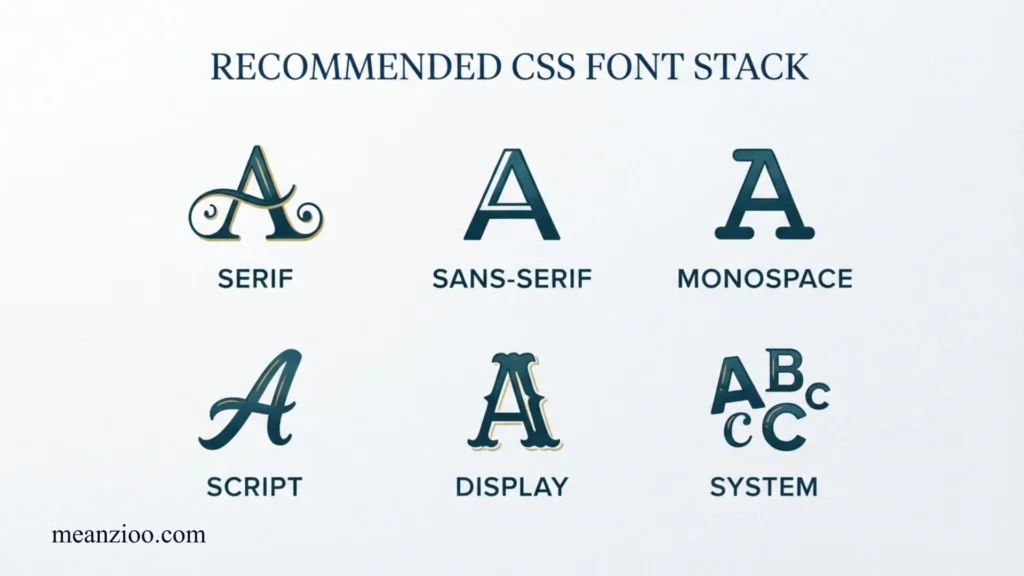
If your website contains multilingual text and special symbols, you can combine language-specific Noto fonts with Noto Sans Symbols 2.
For example:
body {
font-family:
“Noto Sans”,
“Noto Sans Symbols 2”,
sans-serif;
}
The official Noto web guidance recommends placing the most important language/script font at the beginning of the font-family declaration and using Noto Sans Symbols 2 as an additional fallback when arrows or dingbats are needed.
How to Use Noto Sans Symbols With Google Fonts
For websites, Google Fonts can be a convenient way to load supported Noto font families without manually hosting the font files.
You can use the Google Fonts service or self-host the required files, depending on your site’s performance, privacy, and deployment requirements.
A basic CSS declaration after loading the font might look like:
.symbol {
font-family: “Noto Sans Symbols 2”, sans-serif;
}
For performance-sensitive websites, avoid loading fonts that you do not actually need. If your website only requires a small number of symbols, unnecessary font resources can add to page weight.
Google Fonts vs. Downloading Noto Sans Symbols
Both approaches have advantages.
Google Fonts
Useful when:
- You want simple web implementation.
- You do not want to manage font files yourself.
- You are building a standard website.
Self-Hosted Font Files
Useful when:
- You want greater control over font delivery.
- You want to manage your own web assets.
- You have specific performance or privacy requirements.
The Noto project provides downloadable font files directly through its official font resources.
Noto Sans Symbols Font Weights
One important difference between the two families is their weight availability.
The official Noto documentation lists multiple weights for Noto Sans Symbols, including:
- Thin
- ExtraLight
- Light
- Regular
- Medium
- SemiBold
- Bold
- ExtraBold
- Black
It also provides a variable TTF version.
Noto Sans Symbols 2 is presented in the current Noto Symbols download collection primarily as a Regular font.
If your design requires multiple visual weights for symbols, this difference can influence which family you choose.
Also Check This Post:Symbols of Ireland: 15 Irish Symbols, Their Meanings, History, and Cultural Significance
Noto Sans Symbols vs. Noto Color Emoji
Noto Sans Symbols should not be confused with Noto Color Emoji.
Noto Sans Symbols is primarily intended for monochrome symbol glyphs. Noto Color Emoji is designed for colorful emoji rendering.
For example, a website may use:
- Noto Sans for normal text
- Noto Sans Symbols 2 for technical symbols
- Noto Color Emoji for colorful emoji
The appropriate choice depends on whether you want a symbol to behave like typography or like an emoji.
Why Do Symbols Appear as Squares?
A square or empty box is often called a missing-glyph or “tofu” character.
It usually means the active font does not contain the requested character.
For example, imagine your page contains a Unicode character that your primary font does not support. The browser searches the available fallback fonts. If no suitable font contains the glyph, the character may appear as a box.
Adding Noto Sans Symbols or Noto Sans Symbols 2 to your fallback strategy can solve the problem when the required character is included in that font.
However, installing Noto Sans Symbols does not guarantee that every Unicode character will display. No single font should automatically be assumed to contain every character in Unicode.
Why Does the Same Symbol Look Different on Different Devices?
The visual appearance of a Unicode character depends on the font used to render it.
Two devices can display the same Unicode code point differently because they use different fonts.
Other factors can include:
- Operating system
- Browser
- Application
- Font fallback
- Font version
- Unicode support
- Text-rendering technology
- Emoji presentation
This is normal. Unicode identifies the character, but the font determines its visual design.
Noto Sans Symbols and Accessibility
Correct symbol rendering can also matter for accessibility.
Do not use symbols as the only way to communicate important information. For example, an icon or arrow should not be the sole indication of an important action if users could misunderstand it.
For website interfaces:
- Provide accessible labels for important icons.
- Maintain sufficient visual contrast.
- Avoid relying exclusively on decorative symbols.
- Test symbols with different browsers and operating systems.
- Use semantic HTML where appropriate.
A font can solve a glyph-availability problem, but it does not automatically make a user interface accessible.
Is Noto Sans Symbols Free?
Noto fonts are distributed as open-source fonts. The Noto project documentation states that Noto fonts are published under the SIL Open Font License (OFL) 1.1.
This makes the fonts suitable for many personal, commercial, educational, design, and development projects, subject to the terms of the license.
For professional or commercial projects, always review the current license accompanying the specific font files you distribute.
Noto Sans Symbols for Web Design
Noto Sans Symbols is particularly valuable when a website uses specialized symbols throughout its content.
Examples include:
- Documentation websites
- Mathematical resources
- Educational websites
- Technical manuals
- Unicode reference websites
- Developer documentation
- Navigation systems
- Symbol directories
- Typography websites
For a multilingual website, a font stack can combine language-specific fonts with Noto Sans Symbols 2. The official Noto guidance specifically demonstrates this type of fallback strategy.
Noto Sans Symbols and SEO
Noto Sans Symbols is not a direct Google ranking factor.
Using the font will not automatically improve your rankings.
However, typography can affect usability and presentation. If your page contains technical symbols, arrows, mathematical characters, or other special Unicode content, correctly rendering those characters can make the content easier to understand.
For an SEO-focused website, prioritize:
- Search intent
- Helpful and original content
- Clear headings
- Accurate information
- Good internal linking
- Mobile usability
- Accessibility
- Fast page performance
- Descriptive page titles and meta descriptions
- Clear answers to common user questions
The font should support the content rather than become a substitute for good SEO.
Common Noto Sans Symbols Problems and Solutions
Noto Sans Symbols Does Not Appear in the Font List
Restart the application after installing the font. If it still does not appear, check whether the font installation completed successfully.
A Character Still Shows as a Box
The required character may not be included in the font. Try Noto Sans Symbols 2 or another font with the appropriate Unicode coverage.
Noto Sans Symbols 2 Looks Different From the Expected Symbol
The Unicode character may be rendered using a different fallback font, or you may be comparing two different font designs.
The Font Works on Your Computer but Not on Your Website
Installing a font locally does not install it for website visitors. A website needs an appropriate web-font setup or a reliable fallback font stack.
The Website Loads Slowly After Adding the Font
Avoid loading unnecessary font files. Use only the weights and families your website actually requires.
Symbols Work in One Browser but Not Another
Check the browser’s font fallback behavior and whether the required web font has successfully loaded.
Best Practices for Using Noto Sans Symbols
For the best results:
- Use Noto Sans Symbols when you need its specific coverage.
- Choose Noto Sans Symbols 2 for broader symbol coverage.
- Use a fallback font in your CSS.
- Test important symbols across major browsers.
- Do not assume every Unicode character is supported.
- Avoid loading unnecessary font weights.
- Use accessible labels for important interface icons.
- Check the official character coverage before selecting a font.
- Use the official Noto download resources when possible.
- Keep typography secondary to content quality and usability.
Frequently Asked Questions
What is Noto Sans Symbols?
Noto Sans Symbols is a sans-serif font designed for Unicode symbols. The current official documentation lists 1,224 glyphs and 840 supported characters across 10 Unicode blocks.
What is Noto Sans Symbols 2?
Noto Sans Symbols 2 is a broader symbol font in the Noto family. It currently contains 2,674 glyphs and supports 2,655 characters across 26 Unicode blocks.
Is Noto Sans Symbols better than Noto Sans Symbols 2?
Not necessarily. Noto Sans Symbols has more weight options, while Noto Sans Symbols 2 offers substantially broader symbol coverage. Your choice should depend on your project.
Where can I download Noto Sans Symbols?
The official Noto Symbols page provides downloadable files for Noto Sans Symbols and Noto Sans Symbols 2.
Can I use Noto Sans Symbols commercially?
Noto fonts are distributed under the SIL Open Font License 1.1. Check the license included with the specific font distribution for the terms applicable to your project.
Can I use Noto Sans Symbols on a website?
Yes. You can load the font as a web font or use it as part of a CSS fallback stack. The official Noto web guidance specifically recommends Noto Sans Symbols 2 for websites that use arrows or dingbats.
Does Noto Sans Symbols contain every Unicode symbol?
No. Noto Sans Symbols and Noto Sans Symbols 2 have defined Unicode coverage. Noto Sans Symbols 2 covers considerably more characters, but it should not be treated as a complete Unicode font.
Why do Unicode symbols sometimes appear as boxes?
A box generally indicates that the active font or its fallback fonts do not contain the required glyph. Installing or loading an appropriate font can resolve the issue when that font supports the character.
Should I use Noto Sans Symbols or Noto Color Emoji?
Use Noto Sans Symbols for symbol-oriented typography and Noto Color Emoji when you specifically need colorful emoji rendering.
Is Noto Sans Symbols good for websites?
Yes, particularly for websites containing technical, mathematical, directional, or specialized Unicode symbols. Noto’s own web guidance recommends Noto Sans Symbols 2 as a fallback for arrows and dingbats.
Final Thoughts
Noto Sans Symbols is a practical font family for displaying specialized Unicode symbols that may be missing from ordinary typefaces. The original family offers multiple weights and focused symbol coverage, while Noto Sans Symbols 2 provides much broader Unicode coverage.
If you only need a small collection of symbols and want multiple weights, Noto Sans Symbols can be a good choice. If your project requires a larger range of arrows, mathematical characters, geometric shapes, chess symbols, playing cards, technical symbols, or other specialized Unicode characters, Noto Sans Symbols 2 is generally the more versatile option.
For websites, the best approach is usually to use your primary text font first and add Noto Sans Symbols 2 as a fallback where symbol coverage is needed. This follows the Noto project’s own web-font recommendations.
Most importantly, choose the font based on the actual characters your project needs, test those characters in your target applications and browsers, and use the official Noto resources for current downloads and character information.
Also Check This Post:Weld Symbols Explained: Complete Guide to Welding Symbols, Types, Meanings, and How to Read Them

I’m Ryan Mitchell, and I write about modern English, trending slang, and online expressions. I enjoy explaining the meanings, origins, and real-life usage of popular words in a simple way. I believe learning slang is an important step toward understanding today’s English-speaking culture. Through my work, I aim to help readers speak more naturally and stay updated with the latest language trends.